


 |
 |
 |
 |
 |
|
 |
 |
Part 5 – Other Features and Functions
-
3
-
You can also compose messages for printing for mailing or faxing to others outside your company. Click the “Other
Recipient” check box and type in the recipient’s name. The resulting hard copy message is a professional-appearing
correspondence to the intended recipient.
Receiving Messages
When a new message arrives in your inbox, the computer’s internal beeper will alert that a new message has arrived.
The indicator on the main control form will appear, giving you the number of messages that you have not yet read.
You may choose to view the messages now…or wait until a later time. The indicator on the Main Control form will
not go away until all messages have been read.
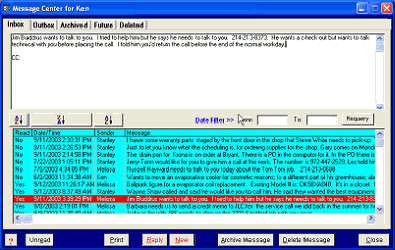
Click the left-hand toolbar button to display the Message Center form. Here you can view all messages addressed to
you and will be listed in your Inbox.
The Outbox contains a list of
messages sent by you.
Archived messages are those that
you have decided to keep (vs. deletion
of a message once you have read it).
Future messages are those that are
addressed to you for some date in the
future.
Deleted messages are those that you
have decided to delete from your
inbox. Messages that are “Deleted”
are actually still in the system. They
can only be completely deleted by
your system manager or other person that has User Rights to “Message Maintenance”.
Select a message to read by clicking your left mouse button anywhere on the line in the turquoise area. The entire
message text can be read in the white area above (including a list of those that were sent a Courtesy Copy.
The first column indicates the message status, either you have read the message or not. You can sort by this
column using the A/Z sort button, causing either all read or unread messages to appear at the top of the list.
The second column is the actual date and time that the message was created. You can also sort this column.
The third column contains the sender’s name. Sorting allows organizing messages by sender (also A to Z).
The fourth column is a preview of the entire message.
You may print the message in its entirety. To reply to sender, click the “Reply” button. A new message will be
created for your reply to the sender.
If you click on an unread message in the turquoise area, it will immediately become Read and will reposition itself
after all remaining unread messages. Click the “Unread” button to restore the message.
Some common uses for Quantrac 2005 Messaging:
Eliminate Phone-Minder pads and written messages to return phone calls
Ask questions or get information from others in the office regarding business communications
Schedule future appointments via the “Hold Message Until” date.
Enter reminders to yourself about things to do the next day, or any other day in the future
Enter Notices or Alerts to certain office functions (i.e. Accounting to prepare sales tax return on 20th of each
month, pay the rent, calendar-based collections, etc.)
|
 |
|