


 |
 |
 |
 |
 |
|
 |
 |
-
22 Part 3 - Using Quantrac 2005
3.
The system was designed to have the first call created on the contract’s begin date. You can “trick” the system
to create the first call on any date desired. If you want the system to create the first call on some date in the
future other than the beginning contract date, you must pre-date the “Last Call”. The entry into the “Last Call”
field must be prior to the beginning contract date by the period between scheduled calls. (i.e. a quarterly contract
will have a three month period between scheduled calls)
Example: You want a Recurring contract with a begin date of September 1, 2003…and a first quarterly call for October 15th; make the
following entries:
Begin Date = 09/01/03
End Date = 08/31/04
Last Call = 07/15/03 (three months prior to your desired first call date)
The Recurring Maintenance process is an extremely flexible process, allowing the user complete control over the
contract term, call dates, equipment zones, and call frequency. It does, however, required knowledge and familiarity
with the process to command the system effectively. We recommend that you utilize recurring contracts wherever the
more simple Seasonal Contracts cannot be applied.
Generating Seasonal or Recurring Maintenance Contract Renewal Letters
The system will generate seasonal and recurring preventive maintenance contract renewal letters which you can send
to your customers to notify them that their contracts are about to expire. You can print these letters for one customer,
or for a group. (The letters are formatted for standard window envelopes.) For this example, we will generate
renewal letters for business and residential customers with seasonal contracts expiring between 9/1/03 and 9/30/03
using the Renewal Letter Wizard.
1.
Click the Reports button on the toolbar.
2.
In the first column on the Reports form, click on “Maintenance Contracts”.
3.
In the second column on the Reports form, click on “Contract Renewal/Solicitation”.
4.
Click the “Select Contracts” button to display the following form:
5.
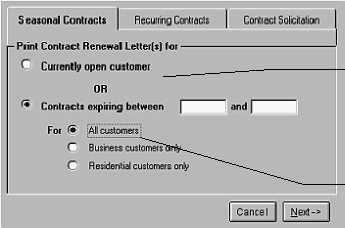
In the “Contracts expiring between” field, enter 9/1/03 and 9/30/03. (You are selecting contracts that expire
between those two dates.)
6.
Click the Next button to display the following form:
The bottom section of this form is
already selected. (If you were
printing a letter for a single customer,
the desired Customer form would
need to be open, and you would click
on “Currently open customer” above.
“All customers” is already selected.
|
 |
|