


 |
 |
 |
 |
 |
|
 |
 |
Part 7 – Accounting - 19 -
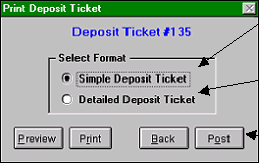
After your have processed a stack of receipts, applying them to invoices; you may create a deposit ticket. Click the
Print/Post button at the bottom of the form. The following option form will appear:
If you wish to go back to the apply payments screen without posting the deposit, click the Back button. This will
allow you to enter more receipts or delete prior payments before posting. Remember that if you post the deposit
ticket, you cannot go back.
6.
Cancel a receipt (full or partial payment of one or more invoices)
In the course of business at your office, you will have the occasion to cancel a payment for invoice(s). NSF checks,
unintentional customer payment of invoices, or application of payment errors are examples of situations where you
would wish to cancel a payment.
A.
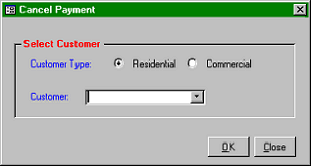
From the menu bar, select Accounting, Functions, Cancel
Payment. This form will appear for you to select the
customer (residential or commercial).
B.
Select Residential or Commercial
C.
With the cursor in the Customer field, begin typing the
name of the customer (for which you wish to cancel the
payment). The system will search the system after each
character, filling in qualifying customers. Or, you may
click the mouse on the selector to show your entire list of
customers for selection.
D.
When the right customer has been identified, click OK.
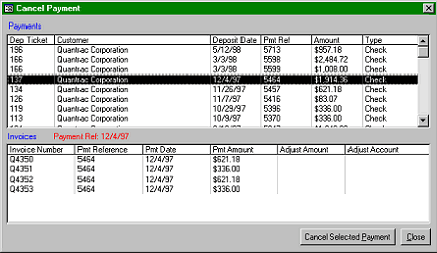
This form will appear, listing every payment ever received from the selected customer.
Click your cursor on the payment to
be cancelled (in the top half of the
form)
All affected invoices that were paid
by the application of that payment
will be listed in the bottom half of
the form for you to confirm your
action.
Click the Cancel Selected Payment
button at the bottom of the form.
The system will ask you to confirm
the payment to be cancelled.
Clicking Yes will cause a reversing
payment entry for any or all invoices paid by the selected payment. If you view one of the invoices affected, view
the payments (click the Payments at the bottom of the invoice form) to see the reversing entry.
You may preview or print a simple deposit ticket, which contains the
Payee’s name, check or reference number, and check or cash amount.
This is the deposit that you can attach to your bank deposit slip, eliminating
the manual recording of receipts.
You may preview or print a detailed deposit ticket, which contains a listing
of each invoice paid as well as the payee’s name, check or reference
number, and receipt amount.
After printing the Simple Deposit Ticket, click the Post button. This posts
all payments to their respective invoices. This process cannot be
reversed.
|
 |
|