


 |
 |
 |
 |
 |
|
 |
 |

-
16 Part 3 - Using Quantrac 2005
The Service Scheduler Details Form
The Service Scheduler Details form
1
is another one of Quantrac 2005’s features. It is used in addition to the Service
Scheduler (described on the previous page) to view service call information in a different format. It is accessed by
clicking the right-hand Service Scheduler Details button on the toolbar, or the Details button on the Scheduler form.
This form will allow you to view (1) all service calls/employees scheduled for a particular time (e.g., late morning) on a
particular day; (2) all current and future service calls assigned to a particular employee; or (3) all service calls
scheduled for a particular day. Further, the form will indicate when an employee is available at a particular time on a
selected day (any day in the future).
To change the date in the “Show Date” field, (1) click the arrows to the right of the field; or (2) double-click in the
field and then double-click on the desired date.
To show all current and future service calls assigned to a particular employee, (1) click the “Employee” button in
the “Select by” field; and (2) click on the desired employee in the “Employees” list (which will be displayed on the
left side of the form).
To show all service calls scheduled for a particular day, (1) click the “Time Due” button in the “Select by” field;
(2) check the “Show all calls for the day” box; and (3) enter the desired date in the “Show Date” field.
1
Please note that this form does not show “Hold” service calls, which can be accessed via the Service Calls button on the Main
Control form, or the List of Service Calls button on the toolbar.
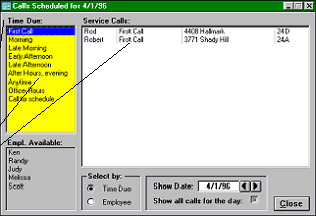
In this example, the system lists the two
service calls due “first call” on April 1,
1996. The employees available at that
time (not already assigned to a service
call) are listed in the bottom-left section.
To select another “Time Due”, click
on the desired line.
To display a service call for viewing or
editing, double-click on the desired line.
|
 |
|