


 |
 |
 |
 |
 |
|
 |
 |
Part 7 – Accounting - 7 -
With this information at hand, you may begin to customize your Quantrac 2005 Accounts Receivable module.
AR Setup, Company Customization
1.
Start Quantrac 2005.
2.
Click “Accounting|Setup” on the menu bar.
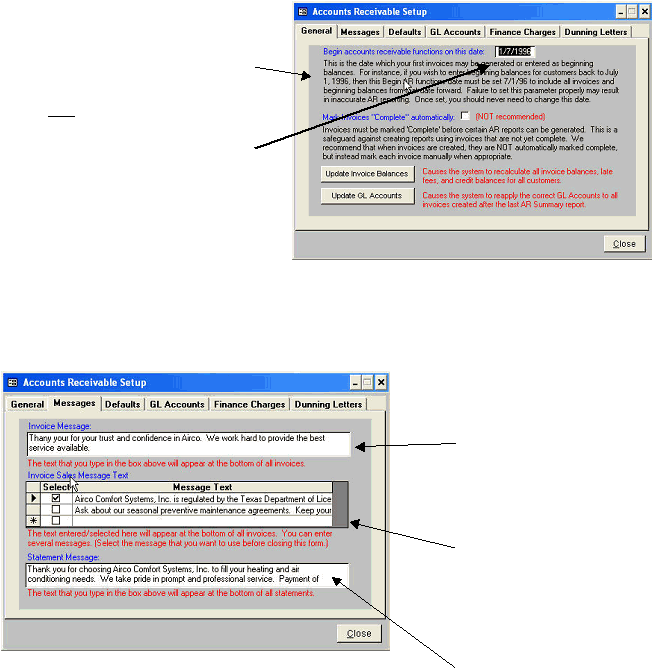
The following form will be displayed:
A detailed description of each of the functions on
the ‘General’ tab are included in the form.
3.
You must enter the date that you wish to
begin using the Accounts Receivable module.
The system will ignore any transactions,
invoices, etc. prior to that date, for calculations,
reports, and accounting summaries.
4.
To proceed, click the ‘Messages’ tab at the
top of the form.
Setting up Invoice and Statement Messages
The ‘Messages’ tab contains your customized texts that will appear at the bottom of invoices and statements.
To continue the AR Setup, click the ‘Defaults’ tab.
The Invoice Sales Message is unique. You
may store any number of messages, each
up to 255 characters in length. Then,
using this form, select the message(s) to
be displayed from your collection of sales
messages. Each invoice created will
contain the message(s) until changed here.
The Invoice Message field is intended for a
general announcement that you wish to
have appear on all invoices. (i.e. Thank
you for your business and loyalty.) This
text field has a 255-character capacity.
The Statement Message field can be used
to communicate certain facts about the
statement to your customers. For
instance, you may wish to thank the
customer for their prompt payment of
invoices.
|
 |
|