


 |
 |
 |
 |
 |
|
 |
 |

-
26 - Part 7 – Accounting
Paying or Writing-off Finance Charges and Invoices
When a finance charge has accrued for an invoice, one of the following may occur:
a)
You may receive full payment for the invoice plus full payment for the finance charge
b)
You may receive full payment for the invoice plus partial payment for the finance charge
c)
You may receive full payment for the invoice but nothing for the finance charge, leaving a finance charge balance.
d)
You will receive full payment for the invoice, and wish to write-off the finance charge.
e)
You may not receive any payments at all from the customer…and be forced to write-off the invoice and finance
charges.
These forms will be utilized in to accomplish the above functions:
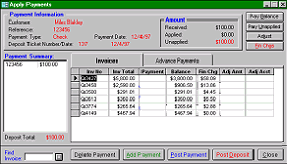
‘Apply Payments’ form
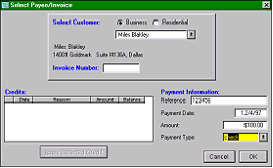
‘Select Payee / Invoices’
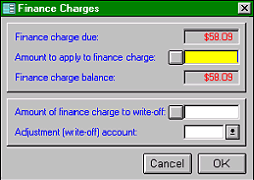
‘Finance Charges’
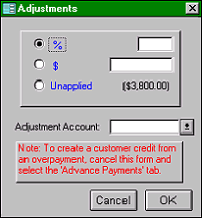
Adjustments
Each of these forms has a specific function. You have already been introduced to the ‘Select Payee / Invoices’ and the ‘Apply
Payments’ forms in previous pages of this manual. The processes below concentrate on the use of the ‘Finance Charges form
to pay or write-off a finance charges attached to specific invoices.
In all examples below, click the Enter Invoice Payments on the toolbar, followed by the Add payment button. Select the payee
or invoice number.
A. To apply full payment for the invoice plus full payment for the finance charge:
1.
Enter the check number (or the word ‘Cash’) in the Reference Number field.
2.
Enter the total payment amount in the Amount field.
3.
Enter the type of payment, then click the OK button.
4.
Select the invoice to pay. (notice that the finance charges accrued for this invoice are also shown)
5.
Click the ‘Pay Balance” button to pay the invoice in full.
6.
Click the ‘Finance Charges’ button to access the Finance Charges form
7.
Click the small button adjacent to the Amount to apply field. This will pay the finance charge in full.
|
 |
|