


 |
 |
 |
 |
 |
|
 |
 |
Part 7 – Accounting - 17 -
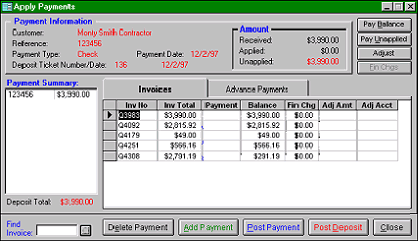
contains the information required to create a deposit ticket (#136 in this case) and to apply payments to any or all
invoices for this customer. All outstanding invoices for this customer will be listed in the Invoices tab.
Using this form, you may apply a
payment to any outstanding invoice or
spread the payment over several
invoices. If the payment does not cover
the invoice balance, you may either
partially pay an invoice, leaving the
remainder unpaid, or partially pan an
invoice and write-off the balance to
uncollectable, bad debt, or allowances
general ledger accounts. The object is to
eventually satisfy the Quantrac 2005
invoice with either payment or write-off
so that the invoice will disappear from
your receivables. (Your company policy
applies here.)
Before continuing, please notice that the form (above) is for invoice #136. It contains the current payment from
Monty Smith Contracting of his check #123456 in the amount of $3,990.00. The ‘Amount’ box shows a received
amount of $3,990.00, and a currently applied amount of $ 0.00, leaving an Unapplied amount of the original
$3,990.00. Also, notice that invoice number Q3983 is highlighted (and the selector box is pointing to that invoice).
The system is waiting for the operator to apply the payment to an invoice or collection of invoices.
Refer to this form for the following scenarios:
1.
Pay an invoice in full with a matching receipt:
A.
Add a payment for a receipt of $3990.00.
B.
Click on the invoice to be paid. (Q3893 is already selected in this example)
C.
Click the Pay Balance button (top right-hand corner of the form) This will cause the Applied amount to be
$3990.00 and the unapplied amount to be zero.
D.
Click the Post Payment button. This will cause the entire receipt to be applied to the invoice selected,
clearing the invoice.
E.
If you have any more receipts to apply (on this deposit ticket), click the Add Payment button and repeat this
procedure for each receipt.
F.
When all receipts have been posted, you may click the Post Deposit button, print a deposit ticket, and post
the entire deposit.
Note: Steps E and F above apply for each example below in order to complete a deposit.
2.
Partially pay an invoice with the entire receipt, leaving a balance due: (Pretend that the receipt was only
$3,900.00.)
A.
Add the payment for a receipt that is less than the full amount of the invoice. (in this case, $3,900.00)
B.
On the Apply Payments form, click on the invoice to be partially paid.
C.
Click the Pay Unapplied button (top right-hand corner) This will leave an invoice balance of $90.00.
D.
Before you can add another payment (same or different customer) the system will confirm that you wish to
leave a balance due.
This will cause the entire payment to be applied to the selected invoice, leaving a balance due.
3.
Spread the payment over several invoices, leaving balances due on each
A.
Add the payment for the amount of the receipt.
B.
Click on an invoice to be partially or fully paid.
C.
Click your cursor in the payment field for that invoice.
|
 |
|