


 |
 |
 |
 |
 |
|
 |
 |
-
16 - Part 7 – Accounting
Applying Payments (Receipts) to Invoices
This next section illustrates the process of application of a receipt (check, cash, credit card, etc.) as payment for an
existing invoice within the system. (Creation of invoices for Customers, Service Calls, or Installations has been
previously covered in Part 2 of this manual) The payment can be intended for one or more invoices. Additionally,
if the receipt does not fully pay the intended invoice, this section will describe partial payments (those that will
either leave an invoice balance due or allow you to write-off the remaining balance as uncollectable). Here, we will
also show the generation of a bank deposit ticket.
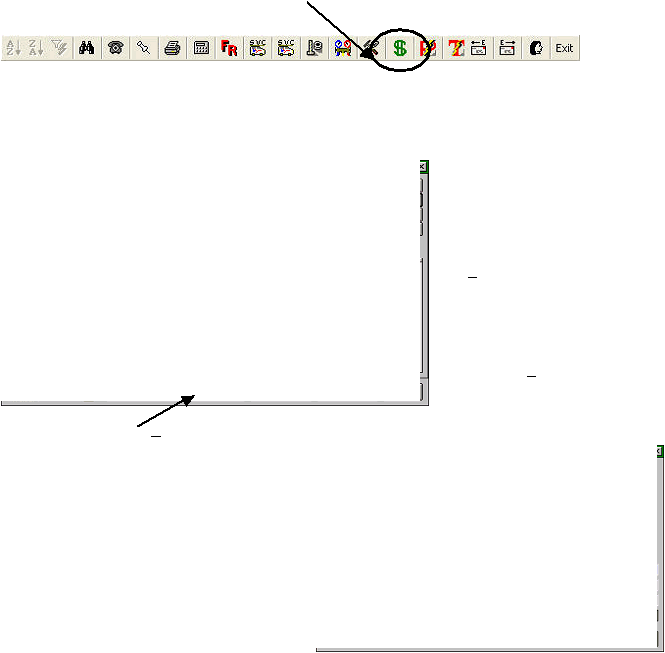
Step 1: Click the Invoice Payment button on the toolbar.
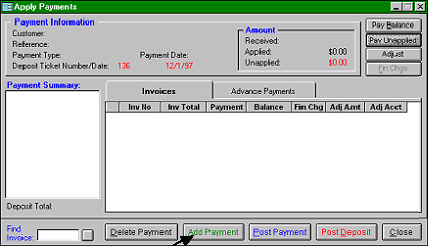
This will cause the system to display the Apply Payments form. From here you will be able to apply payments to
existing invoices, accept advance payments for goods or services (Lay Away or Down Payments), Adjust payments
to match invoices, and create deposit tickets (either a simple ticket for the bank or a detailed ticket for your office.
When you post the payments, the deposit may not be altered or changed.
As you add and apply payments from your
customers, they will accumulate in the
Payment Summary box (in the right-hand
portion of this form). You will be able to
view the payment detail for any payment in
that box by double-clicking on the desired
entry, or by clicking on the payment and
the Pmt. Detail button at the bottom of the
form.
You may delete a payment from the
deposit ticket by clicking the cursor on the
desired entry in the Payment Summary;
and clicking the Delete Pmt. button.
Step 2: Click the Add Pmt. button to display the Add Payment form.
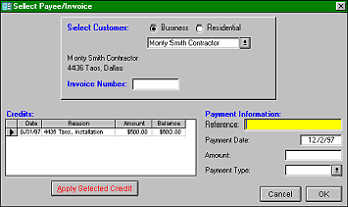
Seletc ‘Business or Residential’ and begin typing the
customer’s name in the Customer field, or enter the
invoice in the invoice number field. Either way, the
system will locate the appropriate customer and display
the finding for your confirmation.
The system will then present any credits the customer
may have accrued. The cursor will be in the Reference
field, waiting for you to enter the payment check number,
the payment amount, and then the payment type. If the
payment is cash, type the word “Cash” in the Reference
field. Upon completion, click the OK button.
Notice that this customer has a $500.00 Credit.
For the purposes of this example, we have chosen Monty Smith Contracting as the payee. Into the ‘Select
Payee/Invoice’ form, we have entered his check number 123456. We have entered the full amount of the check,
$3,900.00, and the payment type of “Check”. Clicking the OK button recalled the Apply Payments form that now
|
 |
|