


 |
 |
 |
 |
 |
|
 |
 |

-8-
Part 6 – Other Features and Functions
Sales Quote Calculator
From the Sales Lead form on the previous page, click the Sales Quote button to access the costing, pricing, and
calculation functions.
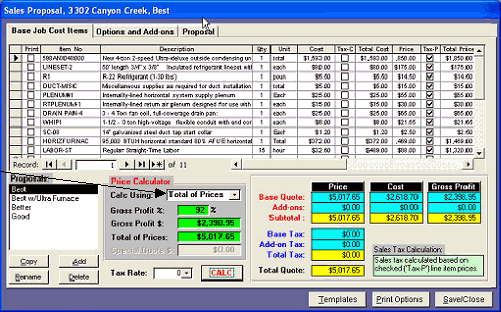
This first tab, “Base Job
Cost Items” enables you to
list all base installation
items (parts, equipment,
supplies and labor, etc.)
from your invoice items
list.
The system
defaults to the
“Total of Prices”
calculation where your
documented cost of each
item is added to give the
total installation price.
Notice the following:
The “Print” column is unchecked for every item. This directs the system to not print the list of items on the
proposal form that you present to your client. You may print or not print items at your discretion.
Each line item has a Quantity, Cost (each), Tax based on Cost, Total cost of the quantity, Price (each), Tax
based on Price, and Total Price based on quantity.
You may elect to compute tax based on Tax – C, (tax computed on your total line item cost.
You may elect to compute tax based on Tax-P (tax computed on your total line item retail price)
You may elect to not compute tax at all.
Also, the Tax Rate can be selected for the city and tax authorities as established in Tax Setup.
This is an enlargement of the Sales Price Calculator:
In this example, the computation of sales tax is based on the total of the line item prices where the Tax – P
check box has been checked.
In this example, there is an Option or Add-On (a Deluxe condenser upgrade at $560 with tax on the entire
amount).
The tax is based on the City of Dallas, totaling 8-1/4%.
The total of the base Quote items, Options and Add-on items are listed along with their total (Subtotal). The taxes
for Base and Add-On items is also listed with Total Tax. The Total Quote is at the bottom. The Sales Tax
Calculation describes the tax source and basis as you have selected it.
|
 |
|