


 |
 |
 |
 |
 |
|
 |
 |

Part 6 – Add-On Modules
-
27 -
For the attachment to open, the associated program must be installed on your computer. For example, to open an
Adobe Acrobat PDF document, you must have adobe acrobat installed on your machine. For the most basic
Attachments functionality, it is highly recommended that you have at least Microsoft Word 2000 is installed, and, if
you want spreadsheet and chart capability, Microsoft Excel 97.
Creating a new Attachment
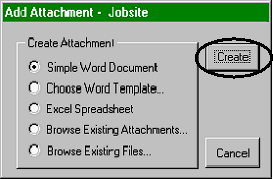
To add a new file, click the Add… button (previous form) to display this form. Here, you have five options. Each
is explained in detail.
1.
Simple Word Document: Create a letter, proposal, etc. using
the ‘blank’ template.
2.
Choose Word Template: Create a letter, proposal, etc. using a
pre-defined document template (i.e. your computerized
letterhead).
3.
Excel Spreadsheet: Create an attachment using an Excel
Spreadsheet.
4.
Browse Existing Attachments: Allows you to view all existing
attachments currently saved in Quantrac 2005.
5.
Browse Existing Files to locate and select document,
spreadsheet, picture, sound, etc. in your system to attach to this
Jobsite.
Simple Word Document
If you would like to produce a Word 2000 document, on a “blank page” (i.e. not using a predefined template) the
first option should be chosen. The Add Attachment form is displayed with that selection as the default. Click the
Create button. The system will start Microsoft’s Word 2000 (if it is not already running). It will create a new
document blank page. If appropriate, the system will ask if you would like the Customer’s Name, Address, etc.
inserted automatically. If you choose yes (default selection), the results can be edited as you desire. Microsoft
Word 2000 will launch and the new Word 2000 document will be opened on your screen. Simply begin typing.
When finished, (and you have printed the document if desired) close the document. The system will ask for a name
for this attachment. You should enter a unique and descriptive name. Close the Attachments form. The
attachment has been saved with the Customer, Jobsite, Installation, or Sales Lead. It may be displayed for review,
printing copies, etc. at any time.
Choose Word Template
You may have previously saved Word templates in your system, to quickly create documents that adhere to a
particular format. For instance, you may have created a template that is pre-addressed to certain customers (to
efficiently create letters or proposals to that customer). Or, you may use template(s) that were included with
Microsoft Word 2000. In any case, you may create a new Word document, using a selected template. To do this,
Click the “Choose Word Template” option (on the Add Attachment form) and click the Create button. The system
will open a Dialog box so you can direct the system to the location of your Word templates.
Note: They can usually be found in Program Files, Office97, Templates folder. The location on your computer may
be different.
Select a template by double-clicking on the template name (or clicking once on the name and then click the Open
button. Word 2000 will launch and a new Word 2000 document (using the selected template) will be created.
Enter, edit, create, print, etc. as you wish. When finished, close the document. Quantrac 2005 will ask for a name
for the new attached document. Name the document and save it. It will be stored with the Customer, Jobsite, etc.
for future use as you may desire.
|
 |
|