


 |
 |
 |
 |
 |
|
 |
 |

-26-
Part 6 – Other Features and Functions
Attachments Module
This feature is included with Quantrac 2005 Professional. It is an available option with Quantrac 2005 Standard.
Note: This is an advanced feature that utilizes Microsoft’s Word, Excel, or any other Windows-compatible software
that saves documents, images, or sounds. You must have these programs if you wish to create Word or Excel files.
This advanced feature of Quantrac 2005 uses interconnectivity between the database engine, Access, and other
Microsoft Office programs such as Word 2000 and Excel or any program that saves data as files. The Attachments
feature also uses the power of the Windows operating system to tie other computer objects to Customers, Jobsites,
Sales Leads, Maintenance Contracts, (such as Pictures, Sounds, etc.). Although the user interface included in this
feature simplifies the procedures, the underlying operations are quite complicated. To fully utilize the power of the
Attachments feature, a good working knowledge of Windows and file structure may be required. Casual usage is
quite easy, though, due to the user interface included in Quantrac 2005.
The primary use of this feature is to save pictures in your database, relating to Jobsites. For instance, you may
maintain several rooftop units on a commercial building. Your technicians can draw an aerial view of the building,
showing the locations of each unit and their model, serial, and an identifying number. Using inexpensive hardware
(scanner or digital camera) you can computerize the drawing and save it in the computer and then attach it to the
Jobsite file. You will be able to display that picture upon command by clicking the ‘Attachments’ button in the
Jobsite form.
Another use of this feature is to save the duct design plans with the Jobsite. Or, you may wish to save digital
pictures of your customers, the properties, their pets, etc. You will discover many uses for this unique feature, only
found in Quantrac 2005.
To access this feature, click the “Attachments” button on the Customer, Jobsites, Sale Leads, or Installation form.
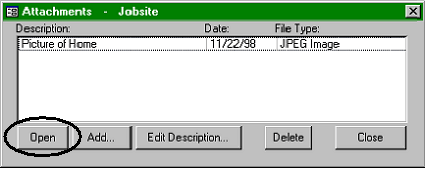
This form will be displayed.
Open an existing Attachment
This Attachments selection form was
obtained by clicking the “Attach”
button on the Jobsite form. From here
the operator can open an existing
attachment (there is only one shown
here), The operator can also Add a new
attachment, Edit the name of any
existing attachment, or Delete a
selected attachment.
This attachment is a JPEG (compressed
picture) of the home at the particular
jobsite. If you would like to open one of the attachments that appear in the list, first select it by clicking your left
mouse button while the mouse pointer is over the item. An item will appear highlighted if it is selected. Once an
attachment is highlighted for selection, there are three ways to open it for viewing or editing:
1. Double-click the item.
2. Press the "ENTER" key on the keyboard.
3. Click the "Open" button at the bottom left corner of the Attachments window.
When you do open an attachment, Quantrac 2005 will open the attachment with the application appropriate to that
type of file. For example, if you open an attachment that is a Word 2000 document, Word 2000 will launch with
that document loaded. If you activate a bitmap, Microsoft Paint will open with the bitmap loaded. If you activate a
“JPEG” compressed picture file, a JPEG view will be launched. Your computer's file association settings determine
what program opens each file type. These can be viewed or altered in your Windows operating system by clicking
"View/Folder Options" on the Windows Explorer menu bar and then opening the "File Types" tab.
|
 |
|