


 |
 |
 |
 |
 |
|
 |
 |
Part 6 – Add-On Modules
-
25 -
Quantrac 2005 keeps a copy of all pages submitted. You can view this list (including any text) by clicking the Page
List button. We recommend that you periodically maintain this list of messages. Accumulating messages uses disk
space and can slow the system.
How Quantrac 2005 Paging Works
When the system is commanded to transmit a message to a pager, the command may be originated from any
Quantrac 2005 workstation on the network. The actual “page” command, along with the numeric data or
alphanumeric text is stored in a specific location in your Quantrac 2005 data, along with all of the rest of your
company’s data.
The computer that contains the communications modem will have the communications program, “Quantrac 2005
Paging” running. This program continually monitors the table in your data in which all pages from all computers on
the network are stored.
When a new entry (new page) appears in that data table, the Paging program first looks at the date and time that the
originator entered. Most pages are intended for immediate action. Others may be for some day in the future. If the
date and time is current (in other words, transmit the page NOW), the communications program initializes, dials the
telephone number of the pager or paging service, establishes communications, and transmits the page. After
successful completion, the communication program disconnects the modem from the phone line and begins
monitoring the paging table for new pages. If the new page in the data table is for some date in the future, the
Paging program passes over that page until the specified day/time.
Since this is a real time application, it is important that all computers on your network have the same date and time,
to within a minute or so. If, for instance, one computer’s time is 15 minutes ahead of the paging computer, the
date/time stamp on a page message will be 15 minutes in the future (for the paging computer). The message will
not be transmitted until the intended time and date become current, which will delay the transmission for 15 minutes
in this case.
Text Messaging Module
This feature is included with Quantrac 2005 Professional. It is an available option with Quantrac 2005 Standard.
Note: This feature utilizes your cellphone provider’s Text Messaging service. Contact your provider to see how
you can send email messages to your employee’s cellphones.
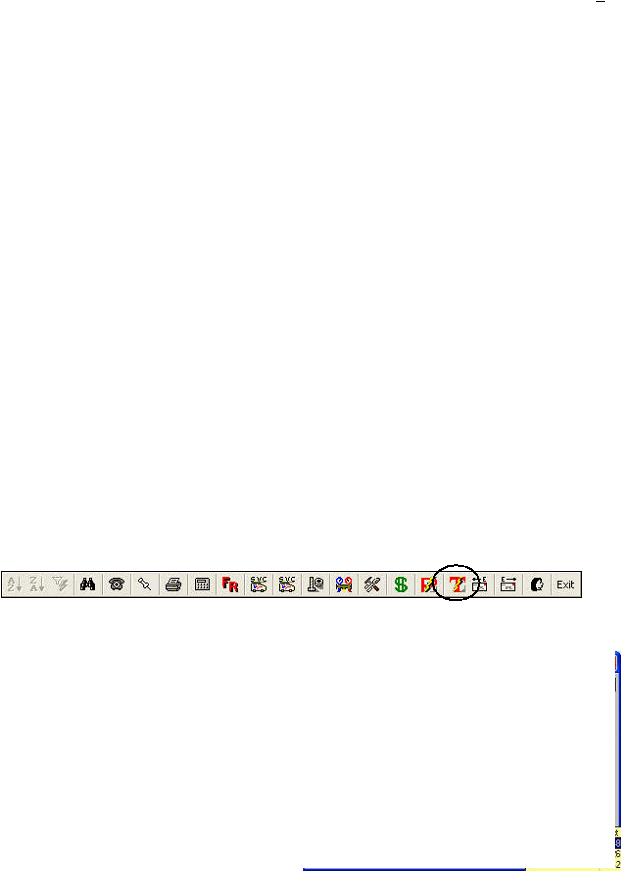
To initiate a Text Message (to be emailed to a cellphone), click the Text Message Icon button on the toolbar.
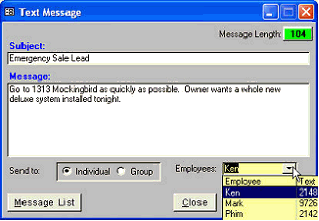
The Text Messaging form will be presented for you to select the employee (or group of employees) and the message
you wish to send.
This is an example of a message ready to be transmitted.
The employee has been selected from the Employees
drop down combo-box list.
A Subject and text has been entered.
Click the Submit Message button (not visible in this
graphic) to send the message. Quantrac2005 will activate
your email program and send the message to the email
address per your system setup.
The message could have also been sent to the pre-defined
group of employees. (i.e. calling a meeting)
A list is retained of all messages sent. Click Message
List to access the message history for viewing or cleaning.
|
 |
|