


 |
 |
 |
 |
 |
|
 |
 |
-24-
Part 6 – Other Features and Functions
Alpha-Numeric and Numeric Paging Operation
You may initiate a Numeric or AlphaNumeric page from one of two areas within Quantrac 2005.
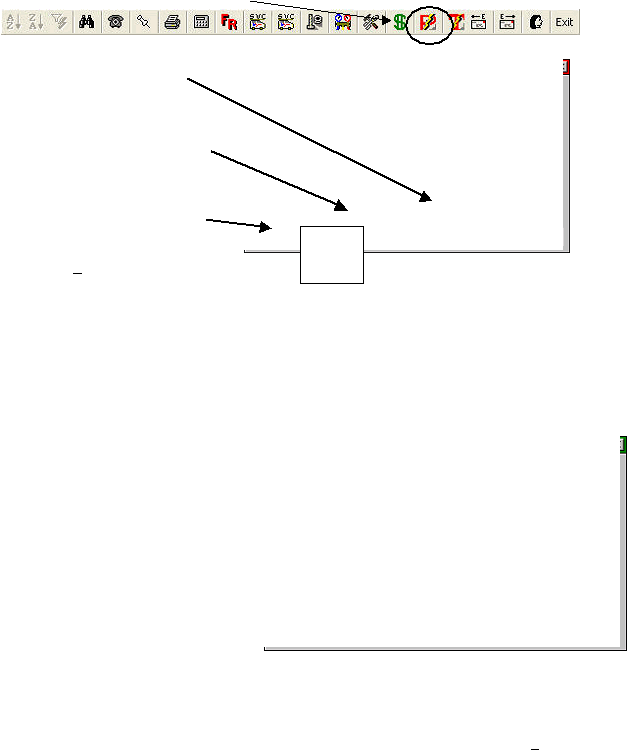
From the toolbar, click the ‘Paging icon’ button.
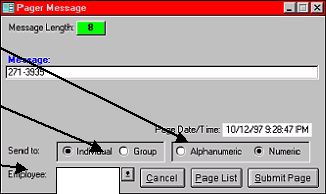
This ‘Paging’ form will appear.
The page will be entered into the modem software queue. When the time delay between paging attempts expires,
the modem will connect, dial the pager’s phone number, and deliver the numeric page (in this case, 271-3935)
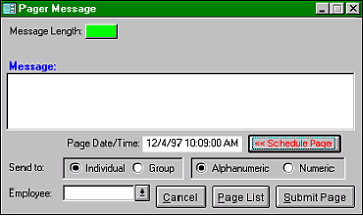
For an alphanumeric page, follow the directions above, but in step 1, select Alphanumeric. Then, select the group
or employee. Only the employees or groups previously setup with alphanumeric pagers will be shown. You may
enter a message of any length in the message field. A message length counter will track the message. Your
communications provider may have certain length limits. Messages longer than the standard length will be
submitted via multiple pages. Check with your provider for costs of long messaging.
Note: You may initiate a page regardless
of the function you may be currently
performing within Quantrac 2005, there is
no need to close any forms first. Simply
click the toolbar button to display the
paging dialog box.
The system has the capability of saving an
alphanumeric page for future transmission.
For instance, you may wish to page
yourself with a reminder of an appointment
for next Thursday. Click the <<Schedule
Page button to display a calendar. Then,
select the time of day, month, day, and year that you wish the system to transmit the page. On that day and time,
the system will transmit the page and your text message as directed.
You may also transmit a ‘Service Ticket’ with your pre-define fields to an employee. Simply click the Ticket
button (lower left-hand button in the Service Call form), and select ‘Page’. The Pager Message will appear (as in
the previous example) where you can view and edit the message. Upon approval, click the Submit Page
button…your service ticket text will be transmitted to the selected alphanumeric pager.
1. Select either alphanumeric or
numeric for the type of page as
appropriate. This example
shows a typical Numeric page.
2. Select either page an indivi-
dual or page a predefined
group.
3. Select the employee (or the
group) from the previous
selection above.
In this example, only the
employees or groups
4. Click Submit Page.
Ken
Mark
Jeremy
Melvin
|
 |
|