


 |
 |
 |
 |
 |
|
 |
 |
-22-
Part 6 – Other Features and Functions
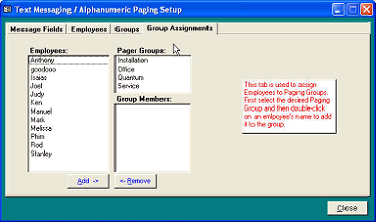
1.
Select the desired paging group with
a left mouse button click on the
group name.
2.
Select the employee to be a member
of that group.
3.
Click Add, to add that employee to
the selected group.
4.
To remove an employee from a
group, select the group and
employee. Then, click the Remove
button.
5.
Close the form. This completes the Paging and Text Messaging Set-up within Quantrac 2005.
Alpha and Numeric Paging Server
The function that does the actual communication with your paging service (through your installed modem) is a
stand-alone program, separate from Quantrac 2005. This program runs continuously on Windows, constantly
monitoring the paging queue in Quantrac 2005. When a Quantrac 2005 user (on the network) submits either an
alpha or digital numeric page, the communications program dials your pager service telephone number and
transmits the message(s) to it. The service provider, in turn, relays the message to the individual pager(s).
The program “HVAC Paging” must be loaded into your Windows95/98/NT operating system. Please follow the
directions included with this software for loading.
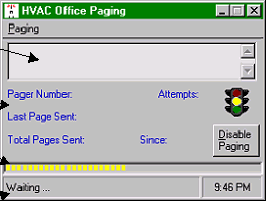
Start the program by double-clicking on the appropriate Icon or selecting from the Start menu…you will then view
this operation form.
This form will display the status of the paging operations.
When a message is submitted (from Quantrac
2005), the message text will appear in this box.
Other accumulated information will appear in
the fields below the box.
An indicator bar will display the current time
elapsed and the time remaining before the newly
submitted page will actually be transmitted.
This status line will show the current state of the paging operation.
Before you can begin paging, you must customize the Office Paging program to your hardware configuration.
Select Paging from the menu bar, and then ‘Setup’ to view the setup form for editing.
Note: you must have a modem installed, and know its configuration. Ask your hardware supplier if you
need assistance.
|
 |
|