


 |
 |
 |
 |
 |
|
 |
 |
-20-
Part 6 – Other Features and Functions
Paging and Text Messaging Module
The professional version of Quantrac 2005 includes (at no extra cost) digital numeric and digital alphanumeric
paging to help you run your office more efficiently. This feature is an optional add-on, available to Quantrac 2005
Standard edition. This feature provides:
The ability to send text messages to individual employees using your text messaging pagers and service
The ability to send text messages to groups of employees (you define the groups and group members)
The ability to send digital numeric pages to individual employees
The ability to send future pages to individuals or groups of employees
The ability to send text pages to employees from service call tickets, with pre-defined text fields
The ability to add to, or change predefined text messages
The ability to send pages from any computer on the network running Quantrac 2005 with only one modem
on a single computer
The ability to send Text Messages to any cellphone user that subscribes to that cellphone provided feature
A log of all messages and pages sent, the date and time sent, and the entire message text
Paging Setup
In order to take advantage of the Paging feature, you must have an internal or external modem connected to at least
one computer on the network, using Com 1, 2, 3, or 4. (See your modem installation guide) You must also
subscribe to either a digital numeric or digital alphanumeric paging service.
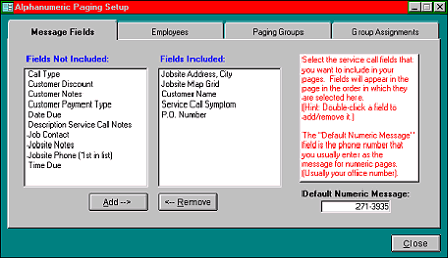
The Paging process consists of two separate programs. The first program is within Quantrac 2005. To access this
program setup, Select Setup|Paging from the Menu Bar to display this form. This may be done on the server or any
workstation.
The system will automatically transmit certain fields to digital alphanumeric pagers based upon your setup. This
form allows you to select certain fields from the Customer, Jobsite, and Service Call forms for default messages.
(Note: The selected field text can be changed or altered during the actual paging operation)
1.
In the left-hand window,
select the field to be included
by clicking the left mouse
button on the field name.
2.
Click the Add button to
include the field in the
message text.
3.
If you wish to remove a field
from the “included” list,
select it and click the Remove
button.
4.
For NUMERIC paging, enter
your company’s telephone
number in the Default
Numeric Message field. This
is the numeric message that
will appear on the receiver’s message display.
5.
Select the Employees tab to continue paging set-up.
|
 |
|