


 |
 |
 |
 |
 |
|
 |
 |

Part 6 – Add-On Modules
-
19 -
Adding tools to inventory
The first step is to make a physical inventory of all of your company-owned tools. You will want to record the
serial number of each, along with values and a brief description.
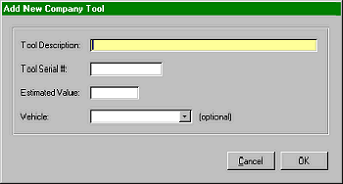
To enter a new tool to the computer tool inventory, click the Add Tool button at the bottom of the Company Tools
form (see previous page in this manual) The following data entry form will appear.
Here, you can enter your tool description in 50
characters or less, followed by the registered serial
number, and the estimated value of the tool.
If you wish, you may assign the tool to an employee’s
vehicle at this time. The list of vehicles will appear in
the drop-down list.
When complete, click ‘OK’.
Upon completion, you will see the entry in the “Tool
Inventory, Available for Assignment” window.
See the Tool Inventory form, in the previous page of this manual.
Editing Existing Tool inventory
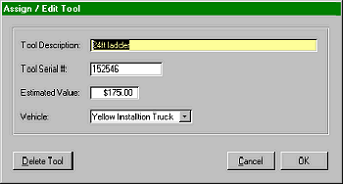
The function to edit an existing tool or to assign an inventoried tool to an employee is contained in one form,
accessed by clicking the Assign to Vehicle/Edit button at the bottom of the Company Tools form. To select the tool
to be edited or assigned, click the cursor on the desired line in the “Available for Assignment” window in that form.
In this case the tool, “24ft ladder” has been selected.
Any of the fields can be edited. Simply click in the
desired field to add text. Or, highlight the contents of
the field to change completely.
You can also delete the tool from your tool inventory
here.
Note: You may only edit, delete, or assign tools that are in the “Available for Assignment” window. These
functions are not available to tools already assigned to vehicles. If you wish to edit a tool which is already
assigned, simply un-assign that tool first.
Un-assign a tool and return it to inventory
To return a company-owned tool to available inventory, click on the desired tool in the “Assigned Tools” window
of the Company Tools form. Click the Unassign button at the bottom of the form. The selected tool will disappear
from the lower window to the “Available” window.
A report is available which lists all vehicles and the tools that are assigned to each. The value of each tool is listed,
along with a total assigned tool value sum.
|
 |
|