


 |
 |
 |
 |
 |
|
 |
 |

-14-
Part 6 – Other Features and Functions
Creating a new Job Cost Template
There are three ways to create a new template:
1.
To create a template from the currently open job cost:
a)
In the Job Cost form, click the “Templates” button.
b)
In the Job Cost/Sales Quote Templates form, click the “Create New” button.
c)
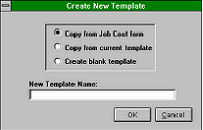
In the Create New Template dialog box, select “Copy from Job Cost/Sales Quote”.
d)
Enter your “New Template Name”.
e)
Click the OK button.
2.
To create a new template from an existing
template:
a)
In the Job Cost form, click the “Templates”
button.
b)
In the Job Cost/Sales Quote Templates form, click
on the existing template in the “Templates” field.
c)
Click the “Create New” button.
d)
In the Create New Template dialog box, click on
“Copy from current template”.
e)
Enter your “New Template Name”.
f)
Click the OK button.
3.
To create a new template “from scratch”:
a)
In the Job Cost form, click the “Templates” button.
b)
In the Job Cost/Sales Quote Templates form, click the “Create New” button.
c)
In the Create new Template dialog box, click on “Create blank template”.
d)
Enter your “New Template Name”.
e)
Click the OK button.
Deleting or Changing the Name of a Template
1.
To delete a template:
a)
In the Job Cost form, click the “Templates”
button.
b)
In the Job Cost/Sales Quote Templates form,
click the “Chg. Name/Delete” button.
c)
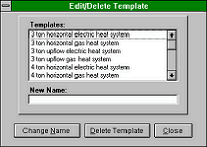
In the Change Name/Delete Template dialog box,
click on the desired template in the top section.
d)
Click the “Delete Template” button.
e)
When prompted, click the Yes button.
f)
If done, click the Close button on the Change Name/Delete Template dialog box.
2.
To change a template name:
a)
In the Job Cost form, click the “Templates” button.
b)
In the Job Cost/Sales Quote Templates form, click the “Chg. Name/Delete” button.
c)
In the Change Name/Delete Template dialog box, click on the desired template in the top section.
d)
Enter the “New Name”.
e)
Click the “Change Name” button.
f)
When prompted, click the Yes button.
g)
If done, click the Close button on the Change Name/Delete Template dialog box.
Inserting a Template into a Job Cost
To insert a template into a job cost:
1.
In the Job Cost form, click the “Templates” button.
2.
In the Job Cost Templates form, click on the desired template in the “Templates” field.
3.
Click the “Copy to Job Cost” button. When prompted, click the Yes button.
|
 |
|