


 |
 |
 |
 |
 |
|
 |
 |
Part 6 – Add-On Modules
-
13 -
Using Job Cost Templates
The Job Cost module has a powerful template feature that allows you to create a “standard” job cost and save it as a
template for future use. For example, if you use the same basic parts and services in many of your jobs, such as
tract home installations, this feature will save you considerable time. Also, you can copy an existing template into a
new one, combine smaller templates, and use these same templates for sales quotes.
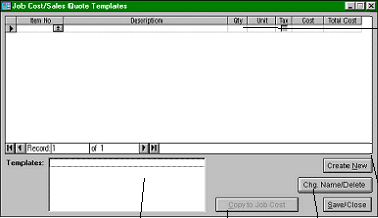
To create or access a template, click the Templates button on the Job Cost form to display the following form:
Click here to create a
new template.
Click here to delete a template or
change its name.
Once you have selected a template, click here to
copy it to your job cost. It will append (NOT
REPLACE) any items already in your job cost.
This allows you to add a template to an existing
job cost and/or add two or more templates to one
job cost.
A list of your existing templates will
appear here. Move your mouse
pointer to the desired line, and
click.
As noted above, invoices,
sales quotes and job costs
use the same “invoice items.”
To insert items into your
template, either (1) click the
Invoice Items button on the
toolbar; or (2) move your
mouse pointer to the next
blank line in this section, and
double-click. If necessary,
then proceed to the “Entering
Invoice Items” flow chart.
|
 |
|