


 |
 |
 |
 |
 |
|
 |
 |

Part 3 - Using Quantrac 2005
-
9
-
Instead of searching for a customer via the Customer Search routine, you may wish to search using Jobsite criteria.
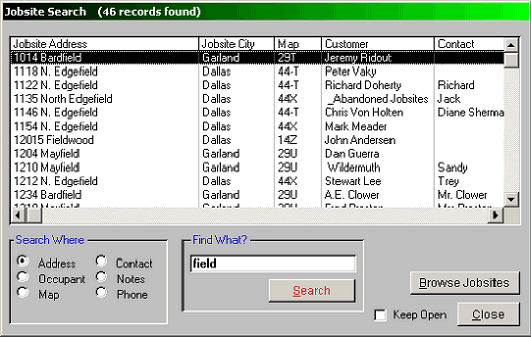
Clicking the Jobsites button on the main control form will command the system to display this Jobsite Search form:
In this example, we have asked the system to create a list of all jobsites that have the character string, “field”
anywhere in the Address. The system found 46 entries. You may double-click on any entry to display the customer
and jobsite forms. Or, you may use the keyboard up and down arrows and the enter key to highlight and select an
entry for display. If you have clicked the ‘Keep Open’ box, this Jobsite Search form with the entries will remain on
the screen for further selections. Simply close the currently selected jobsite and customer forms (from the previous
step) and select another entry from the list for viewing.
You may also find a jobsite by searching for the Occupant, Map area, Contact person, or any notes in the Notes field.
For instance, clicking the ‘Notes” selector, and then typing “Big Dog” in the Find What? Field, will cause the system to
search through your entire list of jobsites looking for the character string ‘big dog’ in the Jobsite Notes field.
You may browse all jobsites in the system by clicking the Browse Jobsites button. Then, double-click on an entry to
display the selected Customer and Jobsite forms.
With just a little practice, you will be able to locate any customer or jobsite within the system in a matter of a couple of
seconds. You will find these features extremely useful in the normal everyday operation of your system.
|
 |
|