


 |
 |
 |
 |
 |
|
 |
 |
-
8
Part 3 - Using Quantrac 2005
Using the Customer/Jobsite Search Features
Quantrac 2005 includes nine different ways to locate a customer and its jobsite(s). Instructions and examples of this
feature are illustrated in this section.
The most convenient method of locating a customer that you have previously entered into the system is to search by
the customer’s main telephone number. First, click the Customers button on the main control form. The system will
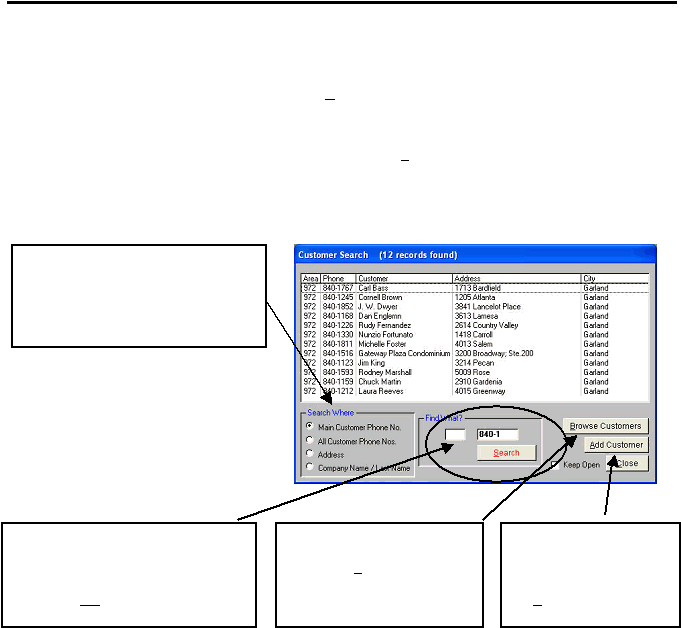
present this Customer Search form.
For this example, only part of the seven-digit phone number has been entered, (840-1 ). To begin the search, either
depress the ‘Enter’ key on your keyboard, or click the mouse on the Search button. The system will display a list of
all customers, which meet this criterion. (This is quite useful when you are unable to ascertain the whole phone
number, for instance from an answering machine. With only a partial number, you may still be able to locate the
customer.) Of course, if you enter the entire number (with or without the area code), the system will locate the
customer in the system.
Note: With any of these search criteria
sources, you may enter all, or any part of the
search data. For instance, if you entered Smi
for the customer’s last name search, the
system will display each occurrence of
customers with the last name of “Smith” as
well as all other customers with the characters
smi anywhere in the customer last name field.
Helpful Hints:
1)
The system will automatically close the Customer Search form when you select a customer. If you want to return
directly to the list of customers after viewing each customer form, click the ‘Keep Open’ box.
2)
You may utilize the Customer Search form without using the mouse or pointer.
a)
With the Main Control form on the screen, depress ‘Enter’ on your keyboard.
b)
Type the seven-digit phone number or (any part of the seven-digit number) on your keyboard. (The numbers
will be entered into the ‘Find What’ seven digit telephone number field. The system will display a list of the
customers, which meet your criteria.
c)
Depress the up or down arrows on your keyboard to highlight the phone numbers in the list.
d)
Depress the ‘Enter’ key on your keyboard. The selected customer form will be displayed.
In addition to searching by the
customer’s main telephone number, you
may also search by the residential
customer’s last name, business
customer’s \company name, or the
customer’s billing address.
You may browse through all
customers in the system by
clicking the Browse Customers
button. Simply double-click on
an entry in the list of customers
to view the selected customer.
You may add a new
customer with the same
phone number as an exist-
ing customer by clicking
the Add Customer button
To limit the search, you may wish to
enter the area code of the phone number
of the customer you wish to locate. Or,
you may leave this field blank. The
system will still find the customer.
|
 |
|