


 |
 |
 |
 |
 |
|
 |
 |
Part 3 - Using Quantrac 2005
-
7
-
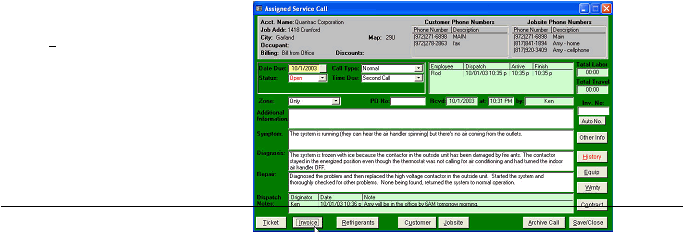
Additional Information: This is additional information about the Customer, Jobsite, or this Service Call that you have
entered. The data contained in the Information is for your office use only. It only prints on internal Tickets, but not on
the customer’s invoice.
Symptom: This is the complaint or request as related to your company by the customer. You may also wish to update
the symptom with your trained technician’s input once he/she has evaluated the problem.
Diagnosis: This is your trained employee’s technical explanation(s) of the factor(s) that created the symptom. This
field should also contain other diagnoses, if any, of items that the customer is not yet aware.
Repair: A complete description of the work done, and how it affected or eliminated the symptoms should be entered.
Customers appreciate detailed explanations.
The symptom, diagnosis, and repair information is extremely valuable in case of unrelated service calls or callbacks.
Remember, the detail you enter in these three fields will appear on the customer’s invoice.
Dispatch Notes: You may enter an unlimited number of notes regarding customer contacts, technician status, etc
using this feature. Double-click in the white area under “Dispatch Notes” and enter any text. The system will
date/time stamp the entry. It will also log the note originator of the note.
The following procedure leads you through an example of completing the New Service Call
form:
1.
Scheduled Date: Enter a “Date Due” by either (a) clicking in the field and typing the date using the MMDDYY
format; or (2) double-clicking in the field, and then (a) clicking the arrow keys at the bottom of the calendar to
select the month and year; and (b) double-clicking on the selected day of that month.¹
2.
Click the “down-arrow” to the right of the “Call Type” field. Click “Normal” in the list.
3.
Click the down-arrow to the right of the “Time Due” field. Click “First Call” in the list.
4.
Click the down-arrow to the right of the “Zone” field. Click “Only” in the list.
5.
For the purposes of this example, we have assigned the service call to technician Ken by double-clicking in the
employee assignment field and selecting Ken from the list of active service employees.
6.
Click in (or Tab to) the “Symptom” field. Type “The furnace has quit working. It’s getting cold in the
offices.” ²
Your screen with the service call to be added should now look like this:
7.
When finished with any editing, click
the Save/Close button. The service
call will be added to the system.
This service call will appear in the
service scheduler on the due date
entered, in this example, October 1,
assigned to Rod. See the Service
Scheduler in this section for further
information.
1
To insert today’s date in the Date Due field, click the gray button to the right of the field.
2
To insert “standard” language (defined in your Setup parameters) in the Symptom field, (a) double-click in that field; (b) double-
click the desired text in the top window of the displayed form; (c) edit the text in the bottom window of the displayed form, if
desired; and (d) click the OK button. See Quick Text.
|
 |
|