


 |
 |
 |
 |
 |
|
 |
 |
-
6
Part 3 - Using Quantrac 2005
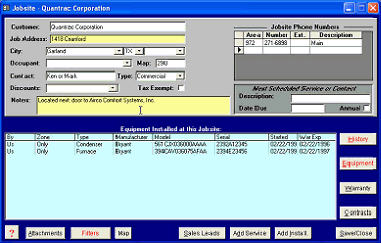
By double clicking on the desired jobsite line in the bottom section of a Customer form, the detailed Jobsite form will be
displayed. (see the following page)
The top section of the Jobsite form contains
general information about the jobsite (address,
occupant, etc.) and the bottom section contains
a list of equipment installed (including warranty
information) at that jobsite. From this form, you
can (1) add a service call, (2)add an installation,
(3) view Sales Leads; (4) view jobsite history;
and (5) view, add or edit maintenance contract,
equipment or warranty information.
If the Filters button is red, it denotes that you
have recorded specific filters for any equipment
zone in this jobsite. Click that button for your
choice of an individual or consolidated listing of
filters.
One profit-making feature of Quantrac 2005 is that the system will create a service call automatically based upon
information that you have saved in the Jobsite form. The Next Scheduled Service or Contact area (right-center of
the form) commands the system to create a service call on the Date Due. This is very useful for scheduling a one-
time customer contact in the future (i.e. please call me about checking my furnace in the fall). This feature can also
be used to create an annual event, such as a yearly filter change or service requirement by clicking the ‘Annual’ check
box. If this box is checked, the system will create a new service call each year on the same date. The Description
that you enter here will appear in the Symptom field of the auto-created service call.
To add a service call for this jobsite
, click the Add Service button at the bottom of the Jobsite form.¹ This will
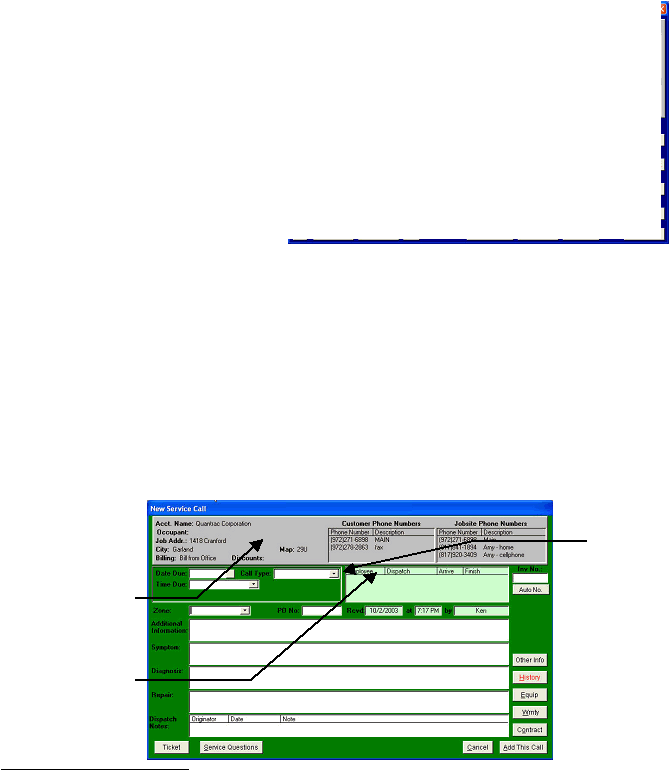
open the New Service Call form shown below.
1
You can also add a service call by (1) clicking on the desired jobsite line in the bottom window of the Customer form; and (2)
clicking the Add Service button.
By clicking
this “down-
arrow,” the
Call Type list
that you
created as a
part of your
Setup
procedure
will appear.
To select an
item from the
list, simply
click on it.
The top section of this
form contains general
customer information.
Customer and Jobsite
phone numbers are at
the left hand side of the
gray top of this form.
This is the Service Labor
window, in which you
will assign one or more
technicians to a call, and
keep track of travel time
and time on the job for
each technician.
|
 |
|