


 |
 |
 |
 |
 |
|
 |
 |
Part 3 - Using Quantrac 2005
-
49 -
also tag a Jobsite as “Tax Exempt”. Any invoices you create for that Tax Exempt jobsite will be exempt from sales
taxes automatically. (i.e. work done for churches, schools, etc.).
You may email the invoice directly to the customer. Clicking the Email button at the bottom of the form will launch or
switch to your computer’s email program and create mail with the invoice as an attachment. Enter the customer’s
email address into the “Send To” field as you normally prepare mail to be sent.
Inserting Items into an Invoice
There are two ways to insert items into an invoice. If you know the Item No., you can enter that number on the first
(or next) blank line in the section beginning “Item No.” on the invoice, and press the ENTER key. The item will be
inserted. Otherwise, you can either (1) click the “Invoice Items” button on the toolbar; or (2) move your mouse
pointer to the next blank line in the section beginning “Item No.” on the invoice, and double-click. The following form
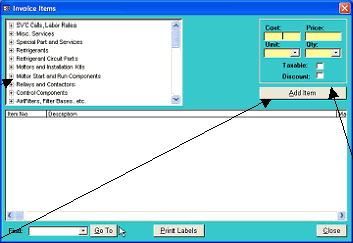
will be displayed.
Except for “Item No.” and “Total”, you can revise all invoice line item fields on the invoice.
Note: If your invoice items are correctly entered with your retail price and your approximate cost, the system will
keep track of profitability. For service invoices, click the ‘Analysis’ button for an instant revenue analysis showing the
gross sale, your cost, gross profit, and profit margin. Also, Quantrac 2005 contains several Revenue Analysis reports to
help manage your business.
When you click on the
plus sign (+) to the
left of a category, its
subcategories will be
listed. When you
click on a
subcategory, its
“invoice items” will be
displayed in the
bottom section of this
form.
Click here when you are ready
to insert the item in the invoice.
Once you do so, the Invoice
Items form will continue to be
displayed in case you would like
to insert additional items.
When you click on an invoice item
in the bottom section of the form,
its cost, price, etc., will be shown
here. You may revise any of these
fields; however, if you do so, your
changes will apply to this invoice
only. (To make permanent
changes, go to Setup | Invoice
Items.) To discount or change the
tax status of an item, click in the
box in the Taxable or Discount
field.
You may also type in the item
number if you know it into the Find
field. Then, click the Go To button
to instantly command the system
to display that item in the outline
form at the top left of the form.
Then, simply enter the quantity
and click Add Item.
|
 |
|