


 |
 |
 |
 |
 |
|
 |
 |
-
48 Part 3 - Using Quantrac 2005
Creating an Invoice
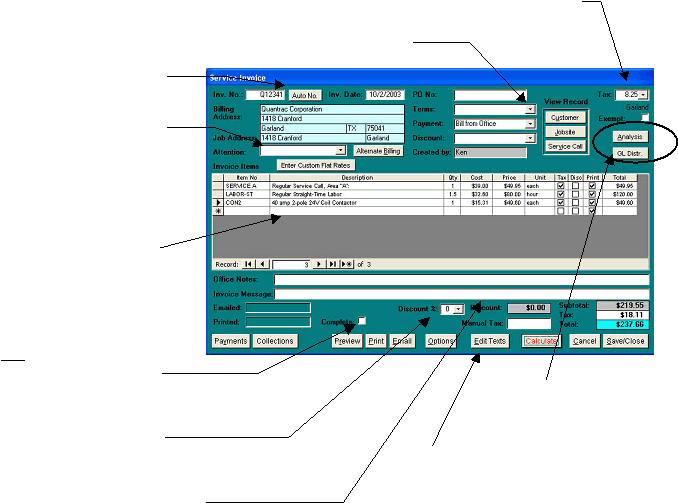
Depending on the type of invoice you are creating (Service Call, Installation or Customer), you will do so by clicking
the “Invoice” button on the Service Call, Installation, or Customer form. The following illustrates the creation of a
Service Invoice. (The same scenario exists for Installation or Customer invoices)
Note: If you have correctly set-up your Sales Tax customization, Quantrac 2005 will compute the sales tax for you,
based upon the city or area that you have performed taxable work. See Setup Sales Taxes in Chapter 2. You may
Click here to
select a tax rate.
Click here to select the terms
(due date) of payment.
Enter your own invoice
number, or click the Auto
Number and the system will
create a unique number for
you.
Enter here to bill the invoice
to a different customer within
the system.
Double click here to enter
Invoice items. (See “In-
serting Invoice Items”
below).
Click here when the invoice
is completed (Accounts
Receivable reports include
only completed invoices.)
Enter any discount
percentage here.
Click here to enter any
changes to the message to
appear on your invoice.
You may edit the Symptom, Diagnosis,
and Repair texts in the service call from
here. They will be formatted exactly as
they will appear on the printed invoice.
Check the GL Acct distribution
for this invoice. Analyze P/L.
|
 |
|