


 |
 |
 |
 |
 |
|
 |
 |

-
44 Part 3 - Using Quantrac 2005
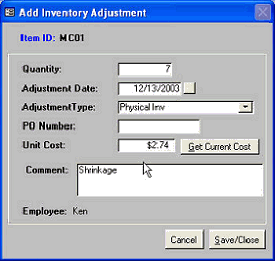
To adjust inventory for the selected item, enter the quantity, which
can be either a positive number or a negative number as may be
appropriate.
Click the adjustment date button or double-click for the calendar and
enter the date of adjustment.
Enter the Adjustment Type from the combo box list if you want to
keep that information, but it’s not a required field.
You may enter a purchase order number if appropriate, but it’s not a
required field.
The employee making the adjustment is automatically entered into
each adjustment for audit trail purposes.
Close the form when finished to save the adjustment entry.
Upon saving, you’ll notice that the Qty on Hand will have been adjusted, and reflects the new quantity of that
particular part that you have on hand.
This procedure should be undertaken for each item that does not match your physical inventory. You can adjust
inventory any time you deem necessary between scheduled inventory counts to raise or lower your virtual inventory
when items are returned to vendors, identified as lost or stolen, donated, etc. Keeping current will lessen the chore of
scheduled physical inventory adjustments.
The final phase of the inventory system is the reporting function.
Inventory Reports and Reporting:
Quantrac2005 has been designed so that all of the daily internal inventory processes occur without any intervention or
notification. There is absolutely no delays or operator actions required to expend inventory through your company’s
sales and invoicing process. If your company creates invoice from Quantrac, inventory will happen automatically.
There are times that you will have the need to instruct Quantrac to report the status of your parts inventory. To that
end, there are several reports available, including LIFO, FIFO, Adjustments Summary, Adjustments Detail, Re-order
by Category/Subcategory, Reorder by Supplier, etc.
The Inventory reports can be accessed by clicking the Reports button on your lower toolbar, then selecting
Inventory-Parts/Supplies. The individual reports will appear in the right hand window of the form. Each report has
a description that can be read in the shaded area above the buttons.
You have the ability to simply preview the reports, or print them on your attached printer(s).
This concludes the Parts and Supplies Inventory system. If you have any questions, need any help, or wish to make
suggestions for the next release of Quantrac, please don’t hesitate calling Technical Support at 972-271-6898.
|
 |
|