


 |
 |
 |
 |
 |
|
 |
 |

Part 3 - Using Quantrac 2005
-
43 -
button on the lower toolbar. Simply use the outline form to select the Category, SubCategory, and Item and then click
the “Calc” button.
You will undoubtedly notice that quantities on hand occasionally run in the negative numbers. (i.e. more of an individual
item sold than you have in stock) If this occurs, it is simply because those parts were not included in Purchase Orders
or properly received. This is one of the most obvious indications that your virtual inventory system requires manual
intervention. If your virtual inventory system is precisely maintained, you’ll never see negative amounts in Qty on
Hand.
Note: In order for Inventory to work properly, you must purchase and then sell invoice items in the same unit
measure. For instance, if you purchase copper “by the foot” you must also sell it (reducing inventory) by the foot.
You may not purchase by the roll and then sell by the foot. This scenario holds true for many items that you may have
in your inventory. (i.e., tubing insulation, wire, refrigerants, etc.)
Manual Inventory Adjustments:
In the course of operation of your business, you will encounter needs to alter your inventory on hand through manual
intervention. For instance, you may return items to your vendors, thus reducing inventory, but not through the normal
sales process. Quantrac2005 includes operations that allow this manual inventory adjustment.
To access Inventory Adjustments, from the Menu bar at the top of the screen, select Setup
Parts Inventory. The
Parts Inventory Setup form will appear, showing only Invoice Items that you specified to be included in Inventory
Calculations. From the Category and SubCategory, select the item that you wish to adjust the inventory quantity.
Either double-click on that item or click the Edit Item button at the bottom of the form. The Edit Invoice Item form
will appear. This is the same form that was utilized to enter new items and mark them for inventory calculations.
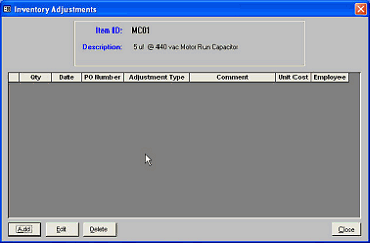
At the bottom of this form click the Inventory Adjustments button. This form will appear:
This form will show all adjustments that have
ever been made for the selected inventory item.
In this example, no adjustment exists. If
adjustments are displayed, you can edit a selected
adjustment by placing your cursor on the line item
and then click the mouse on the Edit button in the
lower left hand area of the form. Likewise, you
can delete a previously-entered adjustment by
clicking the Delete button.
To enter a new inventory adjustment, click the
Add button in the lower left corner of the form.
This Adjustment form will appear:
|
 |
|