


 |
 |
 |
 |
 |
|
 |
 |
-
42 Part 3 - Using Quantrac 2005
how many of each of those items you already have in an open PO (not yet received).
NOTE: You can enter parts or supplies into a Purchase Order that are not in your list of Invoice Items. If you type a
part number of a part that does not exist, a notification will appear alerting this fact to you. If you wish to add this
(new) part anyway, proceed as directed on screen. The result of this procedure is the addition of a new part or supply
to your regular list of invoice items. Be careful to avoid duplicating items that you already have in the system.
After you have added all of the parts, quantities, your costs, etc. you may close the Invoice Items form. Then,
examine the maroon Purchase Order form to ensure that it is filled as you desire. You may preview the completed
Purchase Order if you wish prior to printing it. Or you can also email the Purchase Order directly to your vendor if
your computer system has an Internet connection.
Now, you wait until ordered parts arrive.
Receiving Purchase Order Items:
In normal operation, you will probably have several Purchase Orders open at any given time. As parts arrive to fill
those orders, they should be received. When a Purchase Order is completely filled, you should “Complete” the order
so that it will move from your Open orders to reside in your archives as Completed.
When parts arrive, select the desired Purchase Order from the list (access from either Nuts and Bolts or
Functions
Parts Purchase Orders).
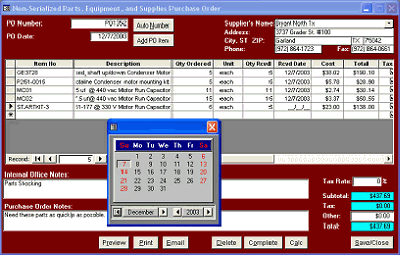
Call up the Purchase Order from the list of
Open Pos. Enter the Qty Rcvd and Rcvd Date.
(To enter the Rcvd Date, double-click in the
field to display the calendar for entry of the
date.
If all items have been received, you may
“Complete” the Purchase Order. At this point
the items will be considered In Stock and
ready for sale by your company.
NOTE: You may complete the purchase order
without having received all of the items. If this
option is chosen, only those received will be
placed into your virtual inventory. This will also
satisfy the Purchase Order leaving no remaining
items on order.
Create Invoices:
In the normal operation of your business, you will create Customer, Service, and Installation invoices. (See Invoicing
elsewhere in this section of the manual.) Each line item in the invoice has the capability of reducing inventory if that
item has been checked as an Inventory Item. For instance, Over the Counter sales of air filters will reduce those air
filters if you have pre-determined that you wish to inventory filters. This happens automatically with no manual
intervention required. You can check inventory at any time by accessing your Invoice Items through “Nuts and Bolts”
|
 |
|