


 |
 |
 |
 |
 |
|
 |
 |

Part 3 - Using Quantrac 2005
-
41 -
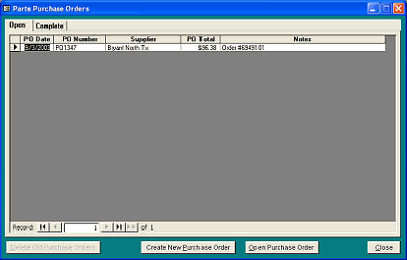
In this example, there is one “Open”
purchase order (#PO1347). When all parts
for a particular Purchase Order are
received, the Purchase Order can be
checked “Complete”, allowing efficient
management of current and completed
orders.
From this form, you can open any purchase
order (Open or Complete) by selecting the
desired line and clicking Open Purchase
Order button.
To create a new Purchase Order, click the
“Create” button.
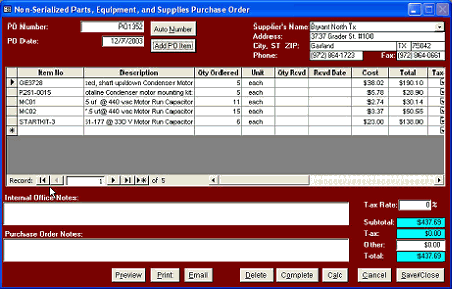
This is the form you will use to create Parts Purchase Orders:
The system will create a unique PO
number for you by clicking the Auto
Number button.
Select the vendor/supplier from your
list of vendors (click the combo-box
down-arrow at the end of the
Supplier’s Name field to display the
list for selection.
If you pay tax at point of purchase, be
sure the Tax column check boxes are
checked for each taxable item. Enter
your tax-payable rate in the field
provided at the right hand side of the
form.
You may enter any internal office notes or Purchase Order notes as you wish. The PO Notes will appear on the
printed or emailed Purchase Order to your vendor.
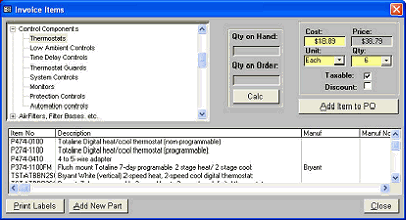
Click the Add PO Item to select items to be ordered under this Purchase Order. This form will appear:
Select and enter items into the Purchase
Order just as you would add them into an
Invoice. The same procedure applies to both
functions.
You can also calculate the Quantities on
Hand for any item using this form by
selecting an item from the list and clicking the
Calc button. The system will also indicate
|
 |
|