


 |
 |
 |
 |
 |
|
 |
 |

-
40 Part 3 - Using Quantrac 2005
this item”. You must do this for each item you wish to include in your inventory system.
You can also establish a reorder quantity at this time. The system will create reorder reports, listing items that are at
or below the quantity you establish here.
The system will indicate the quantity you currently have on hand and the quantity on order.
Select a Begin Date:
This is an extremely important step in the inventory process. The system must know on which date you wish to begin
calculating inventory so that it can disregard all Purchase Orders, Receiving, Sales, and Adjustments before that date.
In other words, if you’ve been using HVAC Office, you probably will have generated invoices that include invoice
items. If you select a Begin Inventory date of today, the Inventory system will not include those previous sales and
invoices in calculations.
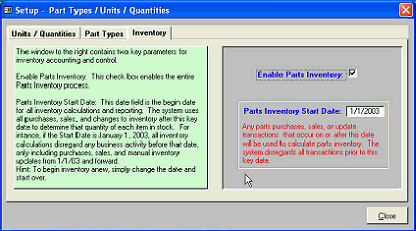
To set the Begin Inventory Date, click from the Menu Bar: Setup
Parts Inventory. Click the Details button at the
bottom left hand corner of the form to display the Setup form that has three tabs. Click the 3rd tab to open this form.
While this form is open, you may also click
the Enable Parts Inventory check box.
Now, the inventory process is primed and
ready to work for you.
Note: You can restart your inventory system by simply changing this date forward to a new Start Date. All
purchases, sales, and adjustments before the new Start Date will be ignored (but will not have been deleted).
Create Parts Purchase Orders:
You can access the parts purchase order forms from one of two avenues:
1)
Click the Nuts and Bolts Toolbar button at the bottom of the page.
2)
Click from the Menu Bar: Functions
Parts Purchase Orders.
The #1 method above is for normal creation of Purchase Orders and checking of received items. The #2
method above has other functions that parts management personnel may wish to retain.
This form will appear:
|
 |
|