


 |
 |
 |
 |
 |
|
 |
 |
Part 3 - Using Quantrac 2005
-
35 -
1.
To open an existing P.O., select the desired line by clicking the left mouse button once on the line, then click the Open
Purchase Order button. Alternately, you may double-click on the selected P.O. line.
2.
To create a new P.O., click the Create New Purchase Order button.
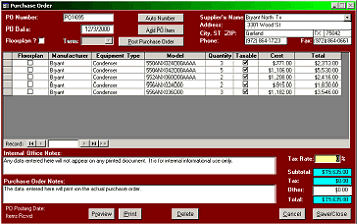
The following form was obtained by clicking the Create New Purchase Order button. This form contains all of the
fields necessary to order serialized equipment from your vendors…and gives the ability to create a receiving report to
log equipment as it arrives at your business.
1.
Enter your P.O. number, or click “Auto No.” and the
system will insert a unique number.
2.
The system auto-inserts today’s date in the P.O. Date
field, but you can edit that entry.
3.
The supplier’s name, address, city, etc. can be
selected from the default list. (Note: This list is
derived from the menu bar function: Setup, Suppliers)
4.
If the equipment covered by this P.O. is to be
purchased on a floor plan agreement, click the Floor
plan box and select the floor plan terms in the
adjacent field.
5.
Add items to this P.O. by clicking the Add PO Item
button. (see below)
6.
Once all items have been entered, you may click the
Post button.
(Note: Once the Purchase Order has been created and posted it will be locked…you will not have editing access to the
originating P.O. again. We suggest that you post the P.O. upon the first receipt of equipment from that order.)
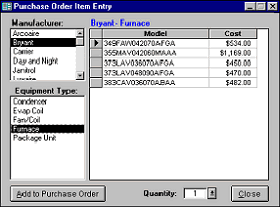
This form was obtained by clicking the Add PO Item button. The form will appear on top of the P.O. form (similar to
the Add Inv. Item form on top of the Invoice form). We have selected Bryant and Furnace by clicking the mouse on
those items in the Manufacturers and Equipment Type windows, respectively.
1.
Select the model number of the furnace to
include in this P.O.
2.
Select the quantity of that model that you
wish to order.
3.
Click the Add to Purchase Order button. The
selected item will be added to the order along
with the quantity.
4.
Continue the process (1,2,3) until all items and
quantities have been added to this P.O.
5.
Close the form.
You may now print the P.O. and submit it to your vendor via US mail, Fax, or Email. When you Save/Close, the
completed P.O. is stored in the system for future reference. Prior to posting the P.O. (which locks the P.O.), you
may recall this P.O. for editing, deleting, or adding items. The Total amount of the purchase and any tax or other fees,
etc. (if applicable) are continually updated with each item entry.
Receiving equipment:
|
 |
|