


 |
 |
 |
 |
 |
|
 |
 |
Part 3 - Using Quantrac 2005
-
33 -
4.
Close when finished. (hint: You may leave and return to this form at any time during the setup.)
The Equipment Inventory Process
Ordering equipment:
Once the setup is complete, you can create a PO within the system using your own PO numbering sequence…or have
the system auto-number each PO. The process of creating the purchase order includes selecting your supplier,
selecting the brand and type of equipment, selecting the model numbers available, and finally the quantity of each item.
The prices will be automatically filled into the PO as you select the model numbers. You will add each item to the PO,
then repeat the steps for the next model number until all items have been entered. The system will compute the total
of the prices of all equipment included in the P.O., including any additional charges you specify.
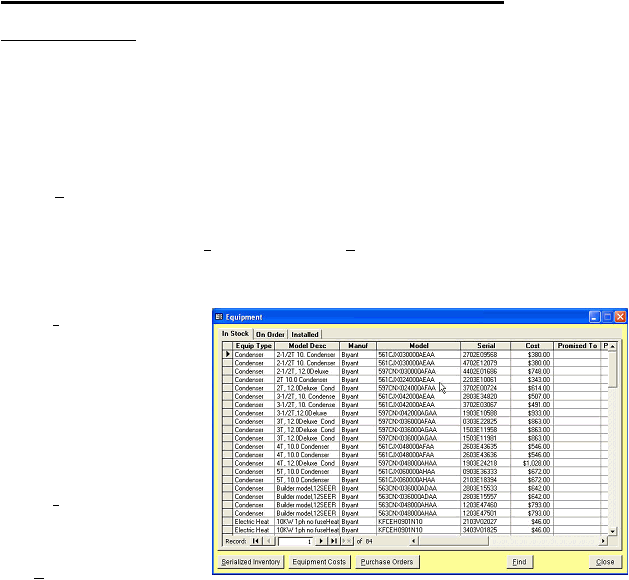
Click the Equipment button on the Main Control Form to display this tab-sorted lists of equipment in stock, on order, or
installed by your company.
Access to your inventory is via the Serialized Inventory and Purchase Order buttons at the lower left. Note: This
form is also used to quickly locate a particular installation of equipment at your customer’s jobsites.
1.
Click Serialized inventory to view equipment in stock or equipment on order. (see below)
2.
Click Purchase Orders to create a
new P.O., edit an existing P.O.,
create a Receiving Order, or log
equipment into an existing
Receiving Order.
3.
Click on one of the three tabs at
the top of the form to display
equipment either in stock, on
order, or already installed at a
customer’s jobsite.
4.
Click Find to display the Find
form for locating a particular unit
that has already been installed at
a customer’s jobsite.
Click Close to close this form.
|
 |
|