


 |
 |
 |
 |
 |
|
 |
 |
Part 3 - Using Quantrac 2005
-
25 -
Creating an Installation or Service Call for an Installation
You can retain the entire job history…by adding installation calls in order to track activity for an installation. In fact,
each time you send a crew to the jobsite, you will want to add another installation call. You may also add service calls
to the installation while it is in progress. Once it is complete, you will have a complete history of the jobsite…and can
add future service calls directly to the jobsite. To create the new installation or service call, click the “Add Call” button
on the Installation form. The New Installation or Service Call form will be displayed. The following explains how to
add an installation call.
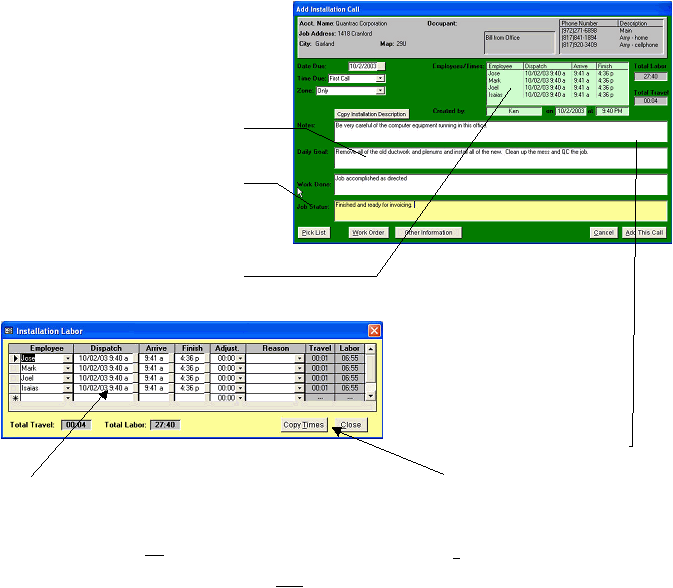
To assign or pre-assign one or more employees to the call on one or more days,
click the down-arrow in the Employee field and select from the list of names.
When you are ready to enter a Dispatch, Arrive or Finish time, click the gray
box to the right of the field to enter the current time, or double-click in the field
and select the desired date and time from the displayed calendar. (Note that
you cannot type directly into the Dispatch, Arrive and Finish fields.) In the
Adjust. and Reason fields, enter any adjustments to labor, and the reason(s) for
the adjustment(s). The system will calculate and keep track of travel time and
time on the job for each technician.
In the Notes field, you can
(1) click the “Copy Installation
Desc.” button to copy the text
from the Description field on the
Installation form; (2) “zoom” into
the text by double-clicking in the
white area; or (3) click the gray
button to the right of the field to
view the customer’s
payment/discount terms and/or
any customer, jobsite or contract
notes.
Click the desired button to print a pick
list (a list of all parts, supplies,
equipment, rough goods, etc. you have
entered while creating this
installation’s job cost) or work order.
To enter text in the Daily Goal, Work
Done or Job Status field, double-click
in the field. Then select from the
“canned” text you defined in your
Setup parameters by double-clicking
on the desired text in the top section of
the form, and making any revisions in
the bottom.
By clicking this button in the
Employees/Times field, the Installation
Labor form (shown below) will be
displayed.
You may copy a selected
employee’s dispatch, arrive, and
finish times for multiple
employees using this Copy
Times button. This eases
logging multiple employees to a
single day’s assignment.
|
 |
|