


 |
 |
 |
 |
 |
|
 |
 |
-
24 Part 3 - Using Quantrac 2005
Installations and Installation Management
Quantrac 2005 can completely manage your installations. You create “installation calls” and service calls to effectively
coordinate your crews, and Quantrac 2005 enables you to quickly create new installation records, calculate job costs, print
“pick lists” and work orders, and create invoices for installations. Also, you can use the Installation Scheduler to
efficiently schedule/dispatch your crews.
Creating a New Installation
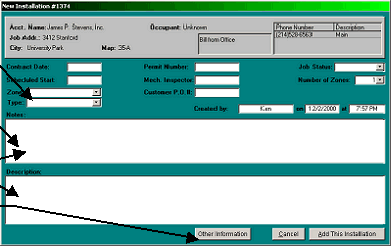
When you create a new installation, you will use the following form. The creation of this record will include a
time/date stamp, including the responsible employee in the Created by field.
Processing a Current Installation
Once an installation is created, it can be accessed via the Installations button on the Main Control form.
The “Type” and “Description” fields
are mandatory. The remaining
fields are optional. (You may wish
to enter your proposal in the
Description field.)
To “zoom in” on the text in these
fields, double-click in the white
area.
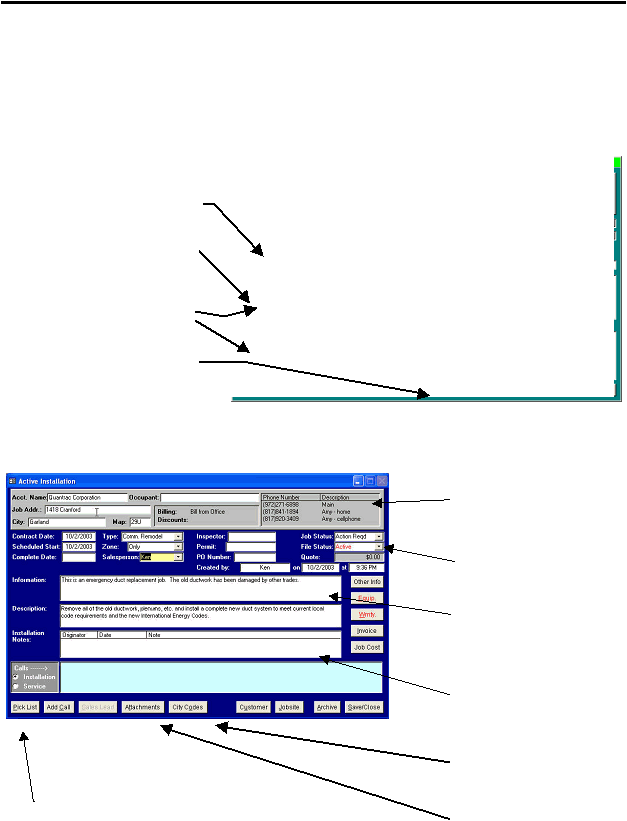
The top section of this form contains
general customer and jobsite information.
Prints a pick list (a list of all parts, supplies,
equipment, rough goods, etc. you have entered
while creating this installation’s job cost). Use
this to load trucks with an pre-planned list of
equipment.
The Job Status field causes the system to
sort this installation in the appropriate
tabular list. (see Setup)
You may enter any text you wish into the
Information field. This information will be
printed in your Installation call. It will not
appear in an invoice.
Record chronologically-ordered
Installation Notes. Double-click in the
white area to access the note entry form.
Click the Other Information button
to see all Customer, Jobsite,
Contract, and Installation notes.
View city-specific code requirements and
peculariarities that you have experienced
and recorded.
Save or view Attachments specifically for this
installation such as pictures, plans,
certifications, etc.
|
 |
|