


 |
 |
 |
 |
 |
|
 |
 |
-
2
Part 3 - Using Quantrac 2005
The Main Control Form
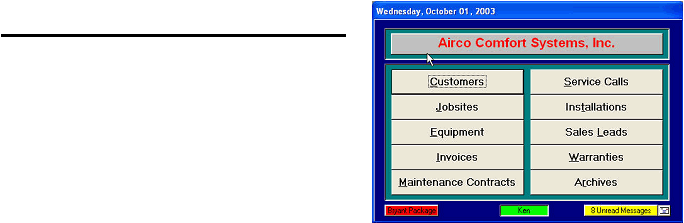
When you start the program, you will see the “Main Control”
form.
This form allows you to access all parts of the system. For
example, to go to a customer’s record, click on the Customers
button. This will open another form, which will enable you to
search for a particular customer.
This field indicates the login name you have used.
Other indicators on this form are Quantrac Messaging indicators and optional manufacturer’s package options. Information
concerning the capabilities and use of Quantrac Messaging and the optional Packages are included elsewhere in this manual.
The following defines the function of each button on the Main Control form:
Customers Opens the “Find/Add Customer” form which allows you to search for a particular customer record,
browse through all customer records, or add a new customer record.
Jobsites Opens the “Find Jobsite” form which enables you to search for a particular jobsite record or browse
through all jobsite records.
Equipment Displays tab-sorted lists of equipment on order, equipment in stock, and a list of all equipment that your
company has installed. Also the button for the “Find Equipment” form, which you can use to search for any piece of
equipment (e.g., by serial or model number). In addition, the Equipment form also contains access to Equipment
Purchase Orders, Serialized Inventory components, and your actual equipment costs.
Invoices
Displays tab sorted lists of “All”, “Incomplete”, and “Completed” invoices in your database. Also displays
the “Find Invoice” form, which you can use to search for any invoice (e.g., by invoice or PO number).
Maintenance Contracts Displays lists of jobsites having seasonal or recurring preventive maintenance contracts.
Buttons at the bottom of the form allow you to view jobsite records with either current or expired maintenance
contracts.
Service Calls
Displays lists of service calls that are either “Dispatched” (an employee is en route to or at the
jobsite), “Unassigned” (not assigned to an employee), “Assigned” (assigned to an employee), “Hold” (on hold for some
reason), and “Unscheduled” (no date due has been entered as with computer-generated seasonal preventive
maintenance agreement calls).
Installations Displays customized tab-sorted lists of currently active installations. Also on this form are the buttons
for accessing the Installation Scheduler and adding new Installations to the system.
Sales Leads Displays a list of “Unassigned”, “Assigned”, “Previewed”, “Proposed”, and Sales Leads on “Hold”.
Also the form gives access to Sales Archives and the path to create new Sales Leads and new Sales Quotes for
existing customers or new customers.
Warranties Displays a list of all equipment that your company has installed. Buttons at the bottom of the form
allow you to view equipment records with either current or expired warranties.
Archives Allows you to access Archived service calls, non-revenue assignments, sales leads, and installations that
have been completed and archived.
|
 |
|