


 |
 |
 |
 |
 |
|
 |
 |
-
14 Part 3 - Using Quantrac 2005
The Service Scheduler
The optional Service Scheduler¹ is one of Quantrac 2005’s most powerful features. It is designed to help you
schedule/dispatch your service calls in the most efficient manner possible. It even tells you the current location of
dispatched employees and allows you to pre-assign service calls to technicians for any future date. To further facilitate
scheduling, it enables you to sort your service calls by date/time due, employee, or map-grid location. You can access
the Service Scheduler at any time by clicking the Service Scheduler button on the toolbar. If, for example, you are
entering a sales lead or creating invoices and a customer calls to see if you can schedule a service call at a particular
time, you can simply click the Service Scheduler button on the toolbar. Once you have closed the Service Scheduler,
your previous task will reappear.
Opening the Service Scheduler
Click the left-hand Service Scheduler button on the toolbar
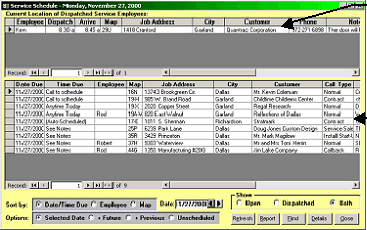
to display the following form.
Your service dispatcher’s goal each day is to empty the bottom section of the form, and to process as many calls as
possible.
To change the date in the “Date” field, (1) click the arrows to the right of the field; or (2) double-click in the field
and then double-click on the desired date.
To re-sort the service calls in the bottom section of the form, click the desired button in the “Sort by” field.
By clicking the desired button in the “Options” field, you will see a list of service calls due on the selected date
(“Selected Date”); due on the selected date and in the future (“+ Future”); due on the selected date and previously
(“+ Previous”); or that are currently unscheduled (“Unscheduled”).
Click the “Find” button to search for a service call in the bottom section (by customer, jobsite address, map-grid
location or service call).
We recommend that you check the “+Previous” calls daily, to display any calls which have been missed or
overlooked.
You can also check Unscheduled calls for viewing or scheduling from this form.
You may print the service scheduler (either a summary of each service call or with detailed information). You
have the ability to order the detail or summary report based upon the Sort by selection on this form.
You may print all service tickets for individual assigned employees by clicking the Report button.
1
Please note that the Scheduler does not show “Hold” calls, which can be accessed via the Service Calls button on the Main
Control form, or the List of Service Calls button on the toolbar.
The bottom section contains a list of
outstanding service calls. This list
can be sorted by date/time due,
employee or map-grid location. You
can scroll through this list, or click the
“Find” button to locate a service call.
To display a service call for viewing or
editing, double-click on the desired
line.
The top section contains a list of
dispatched service calls. To display a
service call for viewing or editing,
double-click on the desired line.
|
 |
|