


 |
 |
 |
 |
 |
|
 |
 |
Part 3 - Using Quantrac 2005
-
13 -
Service Call Features
You can enter a service call for any date in the future. For instance, you may wish to enter a service call for next Fall
for a furnace clean and check-out. The call will reside in the system as a Future Service Call, and then show in the
service scheduler on the appointed date.
You may assign a service call to one or more employees. The system keeps a record of time that each employee was
dispatched and the time on the job.
The “Zone” is the actual system that serves a occupied part of a house, office, warehouse, etc. If you enter a zone
name that does not exist at that property, the system will ask if you wish to create the new zone. It will not ask if you
enter: “None”, “Unknown”, or “All” zone names. When creating a service call, click the arrow (at the right of the
Zone field) to display the list of established Zones at this jobsite. Double-click in the field to display your list of possible
zones as pre-entered in System Setup. Be careful not to enter zones that don’t exist or those that are duplicated.
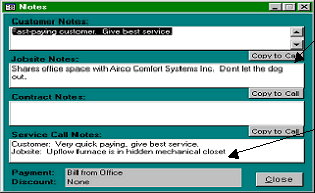
If you have the system feature enabled, “Show Customer and Jobsite Notes” (See System Setup, Other), the system
will display pre-entered notes from the Customer and Jobsite each time you create a Service Call (that has notes in
those fields).
Example:
You have the ability to copy individual notes from Customer
Jobsite, or Maintenance Contract to the new Service Call.
This is a summary of the notes in the Information field of this
service call.
During the life of a service call, you may have several contacts with the customer or your employee at the site. For
instance, you may wish to log the time that you called and got their telephone recorder. Or you may wish to log that
your employee had to go to a supply house to purchase a special part. To log these items, double-click in the Dispatch
Notes area of the Service Call form. Add a note…the system will record the originator and the date/time of
origination. Then, type the pertinent data in the space provided. The system will keep a chronological record of all of
these notes.
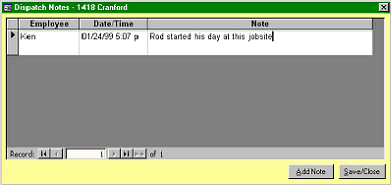
When you double-click in the Dispatch Notes area, this form will appear:
The name of the originator and the Date/Time
are pre-entered by the system.
The note text has been entered as shown here.
To add an additional Dispatch Note, click the
Add Note button.
To close this form, click the Save/close button.
|
 |
|