


 |
 |
 |
 |
 |
|
 |
 |

Part 2 – System Customization - 6 -
This Change Password form will be displayed, displaying the user and the group member.
Each employee with access to the system can create or change his or her own password by selecting from the
menu bar Security, Change Password. This same Change Password form will appear, allowing users to change
their own password, only. The system prohibits a user from changing another user’s password.
To enter new users into the system, complete the following:
a.
Make sure that your new employee’s name has been entered (see Entering System Lists) on previous
pages of this section.
b.
Click Security|User Security on the menu bar.
c.
Select the user’s security group from the drop down list in the right hand column.
d.
You may assign a password for this user now, if you wish, or the user can create or change his or her
own password at any time.
e.
Click Close.
Step Two, Group Rights
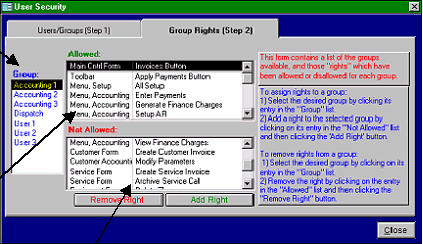
Click the Group Rights tab to proceed to step 2. This form will appear.
Enter the new password via your keyboard,
followed by the Enter key. The characters
will be displayed as asterisks (*) for security.
Confirm accurate entry of the password by re-
entering the password here. Then, click the
OK button. If it is confirmed, the system will
accept the new password.
The list of pre-programmed groups
will appear in this window. Notice
that the group “admin” is not
included in this list. It is hard coded
into the computer and is allowed all
rights. Select a group to view or edit
by clicking the cursor on the word.
The top box includes a scrolling list
of all rights that have been allowed
to the selected group. To disallow a
right, either double-click on the
selected entry, or single click on the
entry and click the Remove Right
button.
The top box includes a scrolling list
of all rights that have been disall-
owed for the selected group. To
allow a right, either double-click on
the selected entry, or single click on
the entry and click the Remove Right
button.
|
 |
|