


 |
 |
 |
 |
 |
|
 |
 |

Part 2 – System Customization - 5 -
System Security Setup
Explanation
Quantrac 2005 includes full user-defined security for different functions within your office environment. For
instance, you may wish to allow service technicians access to view service calls, but prohibit them from deleting
any information in the system, accessing accounting data, printing system reports, etc. Or, another example
would be one level of accounting security (for creating and processing invoices) and a higher accounting security
level for deleting or modifying existing invoices. Quantrac 2005 currently has restrictions, termed, “rights”
available for 35 different functions within the system. You may assign any number or combination of rights to
any of nine different groups or individual functions.
The following is a complete guide to Quantrac 2005 system security setup.
NOTE:
1)
The system is shipped with all “Rights” allowed for all user groups. This is done so that you may begin using
the system as soon as possible, without having to initially determine which rights should be assigned to which
user groups. As you use the system over the next few months, you can decide which rights should not be
allowed to particular users.
2)
The system is also shipped with an administrator user, which is not alterable. All rights are allowed for the
administrator user group, and cannot be changed.
3)
The following procedure assumes that you have logged on as “Administrator”.
Step One, Setting up Users/Groups
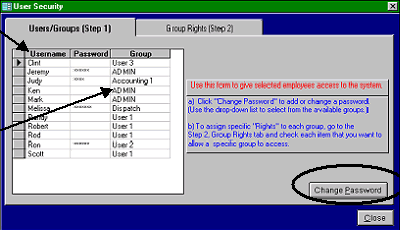
To set up or modify your system security, from the Menu bar, select Security, User Security to display the User
Security form. Notice that the form has two tabs, (Step 1 and Step 2). The first task in this setup process is to
define the group for each employee. It is not necessary to assign a group to all employees. For instance, you
might not wish to allow installation helpers any access to your system. This first step assumes that you have
already entered your employees’ names into the system (previous pages in this section).
Each user of the system must be assigned to a group in order to have access to the system. Users not assigned to
groups will not have any access to the system data or functions.
You may change the password for the Administrator user at this time by clicking the Change Password button on
this form.
A list of your employees will appear in
the Username column. If you have not
yet entered your employees (previous
page) the only Username will be
Administration.
Select a group assignment for each
username from the drop-down list.
Your choices are pre-programmed into
the system for simplified and
standardized setup.
|
 |
|