


 |
 |
 |
 |
 |
|
 |
 |

Part 2 – System Customization - 3 -
Setting up Employee Files
With Quantrac 2005, your company will have the ability to record all employees and certain personal
information. You will have the ability to record pay status and keep a running log of critical instances including
attendance history, disciplinary actions, vacations, etc. Each major function can have discrete system security,
allowing access only to those employees with the need to know. To enter your company’s employees, select
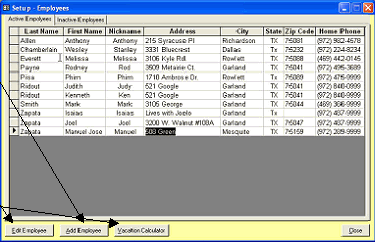
“Setup|Employees” from the menu bar. This form will appear.
Notice that only generic employee information is visible with this form; and thus has the least restrictive security
options. This form is read only, with no ability to edit or alter the data contained.
1.
To add an employee, simply click the Add
Employee button at the bottom of the form to
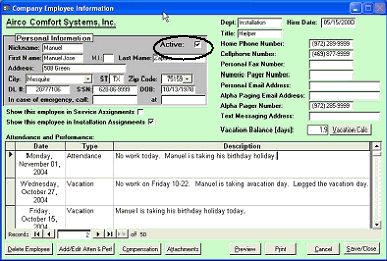
bring up the Company Employee Information
form (shown below).
2.
To edit an existing employee’s information,
first click on the employee in the list and then
click the Edit Employee button. Or, you can
double-click on the employee name fields.
3.
To access the Vacation Calculator for all
employees, click this button.
This form is where the actual employee data
is entered and stored. Certain fields in this
form are visible in the Employee form
above. For company security reasons, Other
data fields are only visible directly from this
form.
Note that the “Active” field (in the gray area
of the form) is pre-checked. “Active” means
that the employee is currently employed by
the company and is expected to be given
daily work assignments. Inactive employees
are those that are no longer employed by
your company.
Also, note that you may check to have this
employee show up as assignable to Service
Calls, Installation Assignments, or both. This aids in creation of Service Calls and Installations.
Certain fields on this form are “required field”. The system will not allow saving of a new employee record
without filling all required fields.
You can make “Attachments” to the employee records. In attachments, you can place scanned employee
documents, pictures, etc. (see “Attachments elsewhere in this manual).
|
 |
|