


 |
 |
 |
 |
 |
|
 |
 |
Part 2 – System Customization - 24 -
Setup Quick Text
Quick Text is one of the most useful advanced features of Quantrac 2005. It has been designed to quickly insert
commonly used text into your Service Calls, Customer Invoices, Sales Leads, and Installation Invoices. When in
those functions, you will be able to double-click in the text fields to display and select your specific pre-entered
Quick Text data. The various functions that utilize Quick Text, will be discussed elsewhere in this manual. To
create Quick Text, click “Setup|Quick Text” from the menu bar. The Quick Text Setup form will appear.
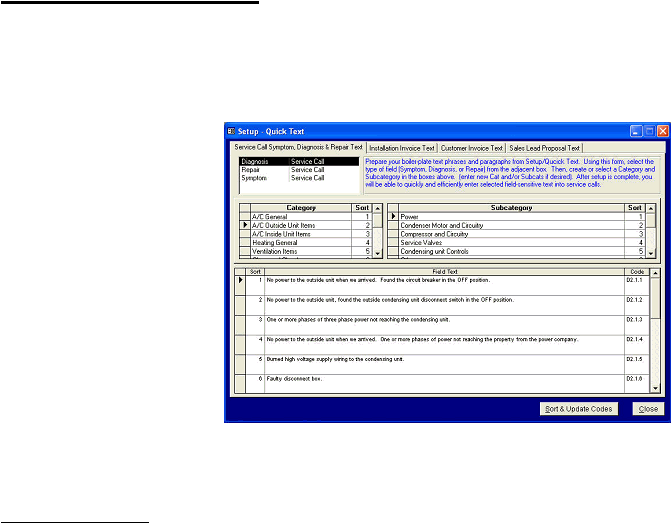
This is the form for entering Service
Call Quick Text. You will be able
to create text items for many
repetitive service call Symptoms,
Diagnosis, and Repairs. Also, you
will be able to print a manual for
your technicians so that simply
entering a code results in the desired
text to be entered.
You will notice that we have already provided quick text for many common HVAC text items. You may delete,
add, or change them at any time.
Service Call Quick Text: First, (if not already selected) click on the Service Call Symptom, Diagnosis, & Repair
Text tab at the top of the form. Then click on the desired Service Call field Diagnosis, Symptom, or Repair) from
the box in the upper right-hand corner of the form. Click the cursor in a Category column to display a list of
Subcategories. Click the cursor in the Subcategory to select the text items for that Category and Subcategory.
You may then delete, add, or modify any text within that section. By assigning a Sort number to a line, you are
designating the order in which it will list. Lines of text used most frequently should be listed first. Lines with no
Sort numbers will be listed at the top. The system will automatically assign a unique code for each line item. The
Quick Text Setup form shown above includes all “Diagnosis” texts with the Category: A/C Outside Units, and
the Subcategory:
Power
. There are at least six items that a technician might diagnose. They are sorted in numeric
order, and each has a computer-derived code (in the right hand column).
To view quick text for your service call Symptom or Repair fields, click the Field Type combo box, and then on
the appropriate word. There are over 150 Symptom, Diagnosis, and Repair quick text entries entered for your
convenience. You may edit, modify, add or delete quick text items as you see fit for your company.
The Quick text feature also is available for pre-composing text for Installation Invoices, Customer Invoices, and
Sales Leads. Click the desired tab to display the form for entering each.
In this example, the Installation Invoice tab has been selected.
Hint: When assigning a
number in the “Sort” fields,
you do not need to use
whole, consec-utive numbers
like “1” or “2”. For example,
if you would like to insert a
new line between existing
lines “1” and “2”, you can
use a number like “1.1” or
“1.16”.
|
 |
|