


 |
 |
 |
 |
 |
|
 |
 |
Part 2 – System Customization - 18 -
Setting up Parts Inventory:
Overview:
Quantrac 2005 Standard includes a complete company inventory process. It has the ability to create purchase
orders to any of your suppliers for non-serialized parts, materials, supplies, etc. This inventory system is an
integral component of the overall operation of Quantrac 2005 / HVAC Office. If you have previously configured
your “Invoice Items” (see previous section in this chapter), you will find the Parts Inventory section very easy to
complete. So, for the purposes of Parts Inventory Setup, this section assumes that you have substantially
completed Invoice Item setup.
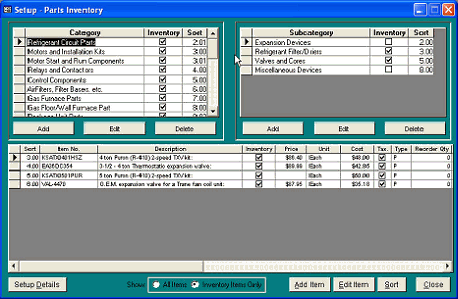
Click (from the menu bar) Setup
Parts Inventory to display this form.
This form allows the user and/or
system manager to designate
selected invoice items to be
included in the Parts Inventory
calculations and reporting. The
default view displays only those
Categories, Subcategories, and
Items that have been marked to
be included in your Inventory
calculations. You may also elect
to display all invoice items
(inventory or non-inventory).
An example of non-inventory
invoice items might be “Service
Calls” or “Labor” items. With
this Inventory package, you
have the ability to include or
exclude items, as you may
desire.
To include an existing invoice item in your physical inventory and calculations/reporting,
a.
Click your mouse in the “Show All Items” area at the bottom of the form, above.
b.
Select the desired item by clicking anywhere on the line or on the selector box
c.
Click the Edit Item button. (Or you may simply double-click on any field in the desired item.)
d.
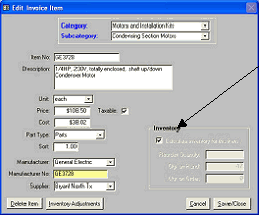
The following form will appear:
This is the same form that was utilized when the invoice item
was first recorded in the system.
Click the Inventory check box to include the item in your
inventory processes. If the check box is already clicked,
clicking again will remove the check and cause the item to not
be counted in your inventory.
At this time, you may also establish a reorder quantity for this
item. If this item is checked to be included in your inventory,
the Reorder Quantity field will be enabled, allowing the
establishment of a minimum quantity of this particular item. If
the quantity in inventory reaches or becomes less than the
Reorder Quantity value, the item will appear in your Inventory
Reorder report.
This completes the Parts Inventory Setup.
|
 |
|