


 |
 |
 |
 |
 |
|
 |
 |

Part 2 – System Customization - 17 -
Setting up Serialized Inventory:
Overview:
Quantrac 2005 can manage your inventory of serialized equipment (condensers, coils, furnaces, package units,
etc.) through the creation of a Purchase Order (PO) to final disposition of the equipment at your customer’s
jobsite. We have termed this process “Serialized Inventory”, since it deals only with items you stock which have
serial numbers for tracking. In most HVAC dealerships, this is the largest percentage of capital invested in
saleable items. Accurate tracking and reporting is required by the successful dealer.
With this feature, you will be able to create a purchase order to submit to your suppliers. When the P.O. is
confirmed (or when the first shipment of items for that P.O. arrives) you will command the system to create a
“Receiving Order” which contains line items for each model ordered. When you enter the serial number of an
item…that item is placed into your warehouse inventory. Finally, when you install equipment into jobsite zones,
you will be able to select the specific inventory item (identified by model and serial number) and move it to the
jobsite with a single mouse click.
In order to function properly, Quantrac 2005 requires initial setup of the following parameters:
Suppliers (your vendors and their mailing addresses and telephone/fax numbers)
Equipment manufacturers (Bryant, Carrier, etc.)
Equipment types (Condensers, Evaporator Coils, Furnaces, etc.)
Equipment generic descriptions (4-ton upflow coil, 5-ton deluxe condenser, etc.)
Equipment model numbers and their prices
Some of the items above in this initial setup will be used throughout Quantrac 2005, but especially in the
inventory package. Don’t worry, if you fail to add items during the initial setup, you can add them at any time in
the future, even while creating new Purchase Orders.
If you haven’t done so already, setup the equipment manufacturers and equipment types by clicking Setup on the
menu bar and selecting Default Lists. Also, enter your suppliers name and mailing address information in the
Setup – Suppliers.
Click (from the menu bar) Setup
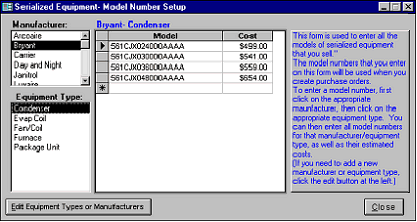
Serialized Inventory to display this form. This allows you to enter each
manufacturer, equipment type, model numbers, and prices of every type and brand of equipment that you may
purchase for inventory under a P.O. number..
1.
Select the equipment manufacturer
from your preset list. If the
manufacturer’s name is not in the
list, you can enter new
manufacturers by clicking the Edit
button in the lower left-hand corner
of the form.
2.
Select the Equipment Type from
the list.
3.
Enter the Model Number and your
cost of the equipment.
Proceed through your distributor’s price books for every serialized equipment model that you normally purchase.
Close when finished. (Hint: You may leave and return to this form at any time during the setup.)
This completes the Serialized Inventory Setup.
|
 |
|