


 |
 |
 |
 |
 |
|
 |
 |
Part 2 – System Customization - 11 -
Setup Invoice Items
Quantrac 2005 includes an extremely efficient method of creating invoices. Using pre-entered lists of items, line
items can be quickly entered into invoices. For your convenience, we have included invoice items from a
working HVAC dealership. You may choose to alter these entries. You may also update these entries at any time
(i.e. price changes, cost changes, or simply add new items)
1.
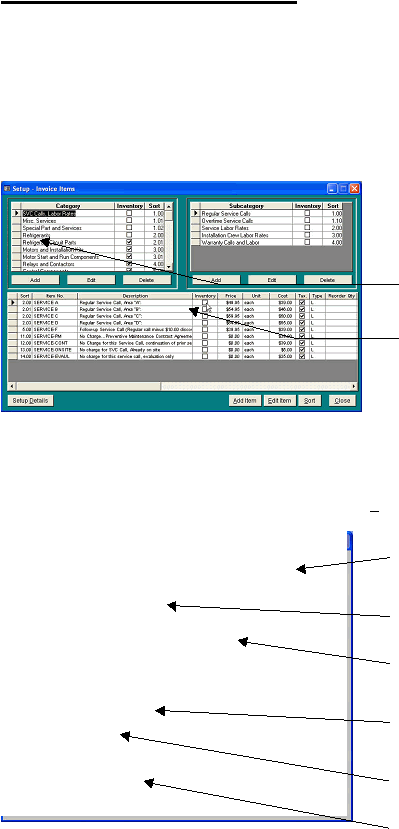
Click “Setup|Invoice Items” on the menu bar to display the form shown below.
2.
This form lists the parts, labor and other items entered into invoices, sales quotes, and job costs. You can also
print a price book, which your employees can use in the field. Hint: When assigning a number in the “Sort”
fields, you do not need to use whole, consecutive numbers like “1” or “2”. For example, if you would like to insert a
new line between existing lines “1” and “2”, you can use a number like “1.1” or “1.16”.
Individual Invoice Items can be entered, edited, or deleted using this form. To display a particular item to be
edited, simply click on the Category, then Subcategory, and then the actual invoice item to be changed. Then,
either double-click on any field of the selected item or click the Edit Item button.
All invoice items are
organized into categories
and sub-categories. The
You may Add, Edit or
Delete any Category,
Subcategory item as you
desire.
HVAC Office already
contains over 1,500 entries.
You may modify any of this
information at any time to
suit your company’s
operation and pricing.
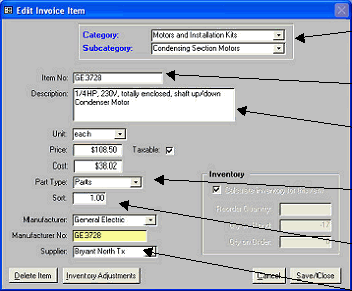
The current Category and Subcategory of
the selected item will be displayed here.
You may change them by selecting new
Cat and Subcat from the drop-down lists.
The item number is your company’s
custom nomenclature for the selected item.
The Description you enter here will be
presented on invoices in the line-item
Detail.
The Cost and Part Type are utilized in
determining gross margins and Employee
Revenue Reports.
The Sort field determines the order of the
Invoice Item in the list.
See Setup Suppliers section of this Chapter
|
 |
|