


 |
 |
 |
 |
 |
|
 |
 |

Part 1 – Getting Started - 6 -
Starting and Exiting Quantrac
To start Quantrac
Click the Start button, click Programs, click Quantrac,
or double-click the gauges on your desktop.
Starting a workstation version of Quantrac for the first time
Double-click the Quantrac icon in the Quantrac program group. The first time that you start a
workstation version of Quantrac , a dialog box will be displayed which will require you to select the location of
the database. Select the drive letter that you noted from the network configuration above. You should see the file
name “hvac01.dat” on the left of the dialog box. Click on this file name, and then click the OK button.
Logging on to Quantrac
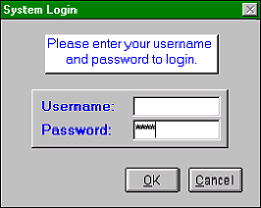
Each time you start either the server or workstation version of Quantrac , the system will present a Logon
form. This logon form is security against unauthorized entry into your database and system operations. Every
system user must have a logon and password in order to have access to your database. When you first receive
and install the software on your computer(s) you may log in as “Boss” with the password “1234”. This is intended
to be a temporary logon, which gives full Administrator access to all data and all functions.
When the Logon form is presented, simply enter (on your keyboard) “Boss” in the Username field [enter] then
the password “1234” [enter]. The password is hidden for security reasons, and shows as an asterisk for each
character. Click the O.K. button or depress the enter key on your keyboard once more. The system will then
verify the user, initialize, and display the Main Control Form.
The Quantrac “Boss” logon has
system administrator rights, and was
intended to be temporary, for your
initial use only. You may wish to
eliminate the employee “Boss” from
your list of employees
after you
have created security clearances
for company employees. See
Setup, Lists on the following pages.
As a system administrator, you will have access to all functions and data within the system. One of your tasks will
be to enter all of your employees’ names (service techs, installers, and office personnel) into the system. You will
be able to include each employee into an access group, which will limit their access within the system. (See
System Security elsewhere in this manual) You will also want to enter other applicable employee data to aid in
tracking employee pay rates, attendance, and telephone numbers etc. (See Entering Employees elsewhere in
this manual)
You may log off of the system at any time, by clicking the left mouse button on the green user identifier field in the
bottom-center of the Main Control Form. Or, select “Security|Logout” from the menu bar. If you log off in this
manner, the Quantrac program is still running on that terminal, but inaccessible to anyone that does not have
the proper login credentials. A new user needs only to log on to have their access to the system.
Boss
|
 |
|